Share Link & Access Control: Password, Expiry, Allow/Block list

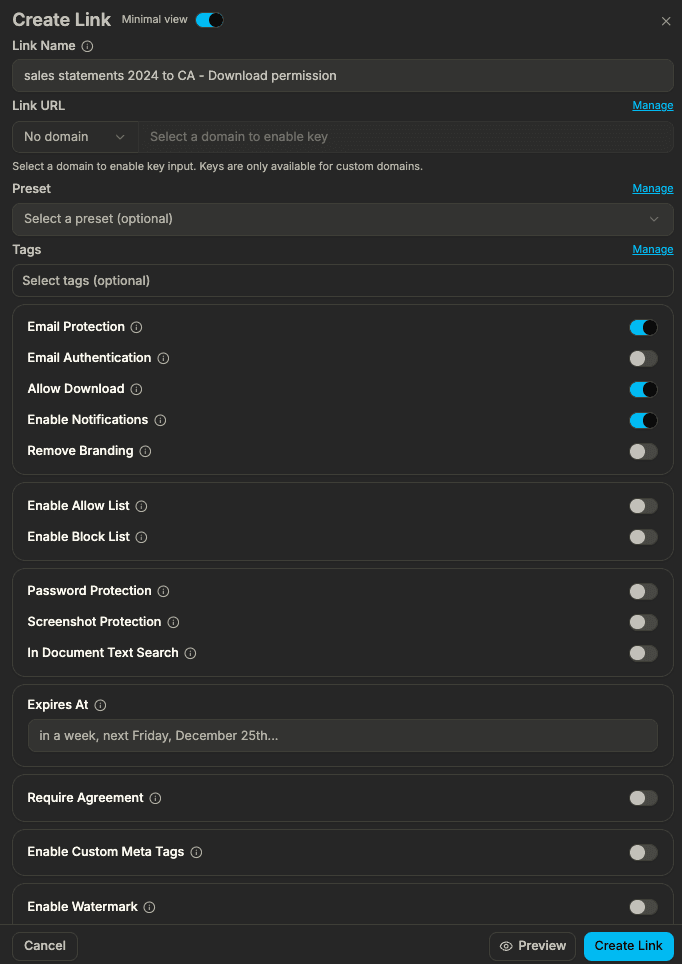
When you share a document or data room link in 2026, you need one place to set who can open it, when it stops working, and whether you get notified. Sendpaper’s link settings give you exactly that: password, link expiry, email allow list, email block list, email protection (require email before access), and enable notifications (get notified when someone views). This guide walks through each control, how they work together, and how to use them on your links.
What You Can Control on Every Link
- Password - Require a password before the link opens. Only people you give the password to can view the document or data room. Passwords are encrypted at rest.
- Link expiry - Set the exact date and time when the link expires. After that, the link no longer opens the content.
- Email allow list - Only the email addresses or domains you list can open the link (e.g.
investor@fund.comor@company.com). Everyone else is denied even if they have the URL. - Email block list - Block specific email addresses or domains from opening the link. Anyone not on the block list can still open it (subject to password, link expiry, and other settings).
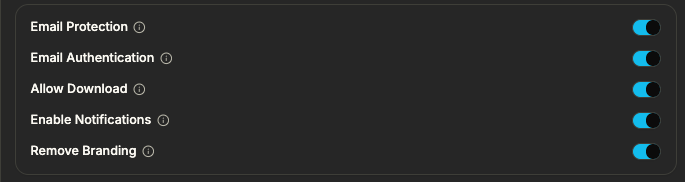
- Email protection - Require viewers to enter their email before they see the content. That gives you a known viewer and enables tracking and notifications.
- Enable notifications - Get notified when someone views or interacts with the link. When you turn this on, email protection is turned on as well (so we know who to attribute the view to).
You can combine these: for example, password + link expiry + allow list, or email protection + notifications. The link settings screen is where you configure them all.
Links by plan
The number of links you can create depends on your plan. The table below is a guide; see Pricing for the latest.
| Plan | Links |
|---|---|
| Free | 49 |
| Personal Pro | Unlimited |
| Advance | Unlimited |
| Dataroom Pro | Unlimited |
| Dataroom Advance | Unlimited |
| Enterprise | Unlimited |
On Free you get 49 links; upgrade to Personal Pro or above for unlimited links and full access control options.
How the Controls Work Together
- Allow list and block list - If you use both, we check the allow list first. If the viewer’s email is allowed, they can proceed (then password/link expiry/other checks apply). If they’re not on the allow list, we check the block list. If they’re blocked, access is denied. If only allow list is on, only listed emails/domains can open. If only block list is on, everyone except blocked emails/domains can open.
- Email protection - When this is on, the viewer must enter their email before they see the document or data room. That email can be checked against the allow/block list. You also get a verified email for analytics and the data room audit log.
- Email authentication (OTP) - For stricter verification, you can require a one-time code sent to the viewer’s email before access. That email authentication flow turns on email protection automatically. Good for high-sensitivity links.
- Notifications - When “Enable notifications” is on, you get notified when someone views or interacts with the link. We need an email for the viewer to attribute the view, so email protection is auto-enabled when you enable notifications.
- Password - Can be used with or without email protection. If both are on, the viewer typically enters email (and passes allow/block), then password, then sees the content.
- Link expiry - Applies to the link regardless of other settings. After the set date and time, the link stops working.
Steps to Set Access Control on Your Link in 2026
| Step | Action |
|---|---|
| 1 | Create or edit a link for a document or data room in the dashboard. |
| 2 | In Access Control, turn on Email Protection if you want to require email before access (and to use allow/block list and notifications). |
| 3 | Optionally turn on Email Authentication (OTP) for verified email verification; see email authentication for document links. |
| 4 | In Access Control, turn on Enable Notifications to get notified when someone views the link. This turns on email protection if it wasn’t already. |
| 5 | Add an allow list (specific emails or domains, e.g. @investor.com) and/or block list (emails or domains to block) if you want to restrict or block by email. |
| 6 | In Security, turn on Password Protection and set the password if you want a password gate. |
| 7 | Set link expiry (date and time) if the link should stop working after a certain time. |
| 8 | Save the link and share it. Viewers will see the gates you configured (email, password, etc.) in order. |
Password Protection
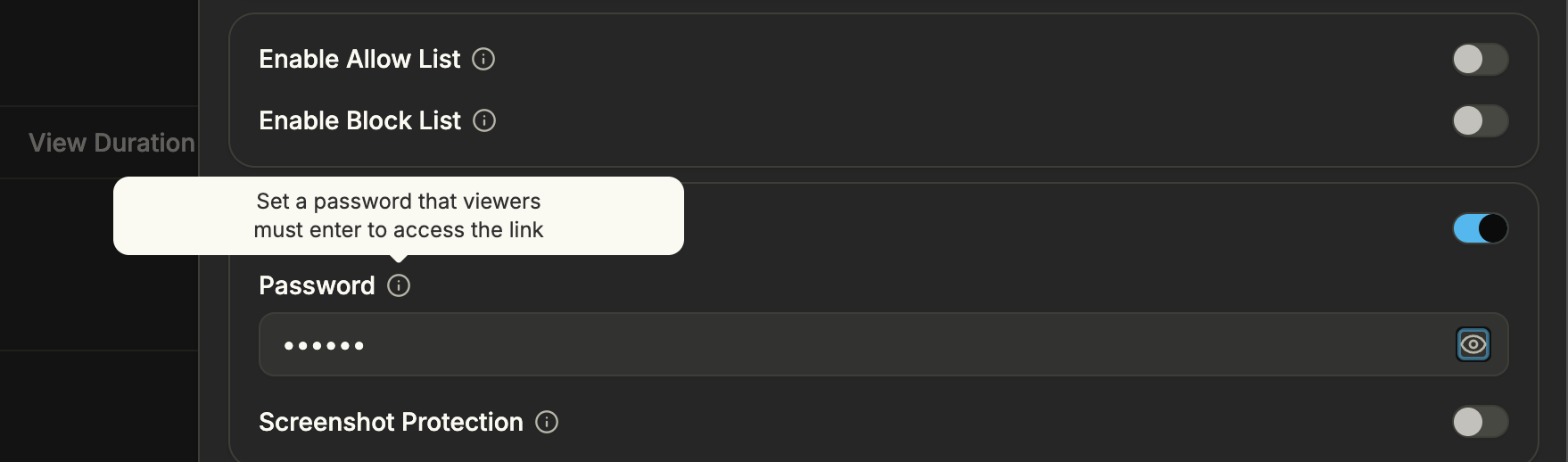
Require a password before the link opens. You set the password when creating or editing the link; share it only with people who should have access. Link passwords are encrypted at rest (AES-256-CTR). You can change the password later; the link URL stays the same. For a full walkthrough, see protect documents and links with a password in 2026 and password protect a PDF without Adobe.
Link expiry
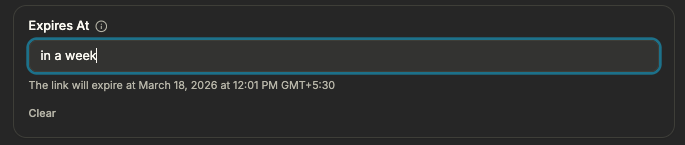
Set the exact date and time when the link expires. After that, anyone opening the link sees that it’s no longer available (or is redirected to a custom URL if you’ve set one). Use link expiry for term sheets, time-bound data rooms, or any link that should stop working after a deal or process ends. Link expiry applies on top of password, allow/block list, and email protection.
Email Allow List and Block List
- Allow list - Restrict access to only the email addresses or domains you add (e.g.
partner@firm.com,@client.com). Only those viewers can open the link (after any password or email verification you’ve set). Everyone else is denied. - Block list - Block specific email addresses or domains. Anyone not on the block list can try to open the link (subject to password, link expiry, and email protection). Use this to exclude certain addresses or domains without maintaining a full allow list.
You can enter multiple emails or domains (e.g. one per line or comma-separated, depending on the product). If both allow list and block list are configured, allow is checked first: if the viewer is allowed, they can proceed; if not, we check if they’re blocked. Don’t put the same email or domain in both lists; the product will warn you of conflicts.
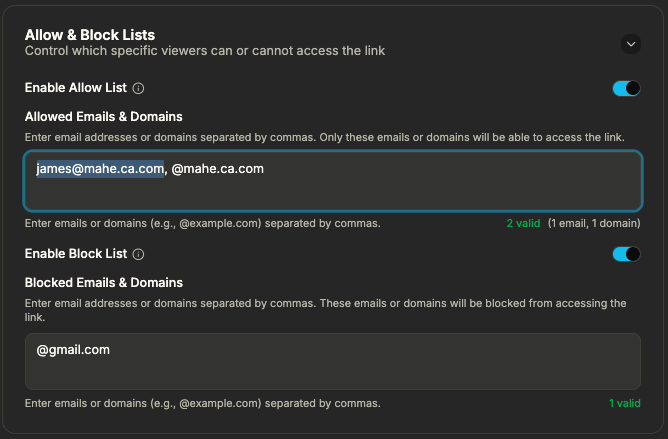
Email Protection and Enable Notifications
- Email protection - When this is on, viewers must enter their email before they can see the document or data room. That gives you a known viewer for analytics and the data room audit log, and allows allow/block list and notifications to work.
- Enable notifications - When this is on, you get notified when someone views or interacts with the link. So you know when the link was opened and, when email protection is on, who opened it. Enabling notifications automatically turns on email protection so we can attribute the view to an email.
For stronger verification (prove they control the email), use email authentication (OTP). That option sends a one-time code to the viewer’s email; they enter it before access. It turns on email protection as well.
Use Cases: Combining Access Controls in 2026
- Pitch deck for a small set of investors - Use allow list with their emails or domains, password (share separately), and link expiry when the round closes. Optionally email protection and notifications so you see when they open. Fundraising & investor relations.
- Data room for due diligence - Password on the data room link, link expiry at the end of the process, email protection and notifications so you know who viewed and when. Add allow list if only certain firms should have access. M&A due diligence.
- Sensitive doc, no forwarding - Email protection + email authentication (OTP) so only verified emails get in. Allow list to restrict to specific addresses. View-only (no download) from link settings to reduce copies. Secure document sharing.
- Board materials - Password + link expiry (e.g. after the meeting). Notifications so you see when directors opened the link. Board & governance.
In each case you use the same link settings: access control (email, allow/block, notifications) and security (password, link expiry) in one place.
How We Handle Your Data
Link passwords are encrypted at rest. Viewer emails and access checks are processed server-side; allow/block lists are stored and evaluated when a viewer tries to open the link. Traffic is over TLS. For full details, see Encryption for document and data room links.
Open Source and Transparency
Sendpaper is open source. The code that implements password protection, link expiry, allow/block list, email protection, and notifications is public. You can inspect how we enforce each control and run the same stack yourself if you self-host. Encryption and open source.
Open source, transparency, and licensing
Sendpaper is open source: you can inspect the code and self-host for full control. We also offer licensing and hosted options for teams that need enterprise support or prefer not to run the stack themselves. For questions about licensing, open source hosting, or self-hosting, contact us and we'll help you choose the right option.
Frequently Asked Questions
Related posts
- Product, GuidesData Room Groups: One Place for Permissions and Analytics | SendpaperUse data room groups in Sendpaper to manage permissions and analytics for investors, buyers, and teams. Create a group once, reuse it on links, and see group-level activity without spreadsheets.
- Product, GuidesHow Sendpaper renders files as images in the viewer (and why it matters) | SendpaperLearn how Sendpaper converts uploaded PDFs into page images for a fast, consistent viewer. We cover what formats can be shown, what processing means, and why a loader appears.
- Product, SecuritySecure PDF Document Sharing: Watermarking, Screenshot Protection, View-Only | SendpaperShare PDFs securely with watermarking, screenshot protection, view-only, and one-click agreement. Password and access control in Share Link and Access Control. One sidebar, all options.