Protect Documents and Links with a Password | Sendpaper

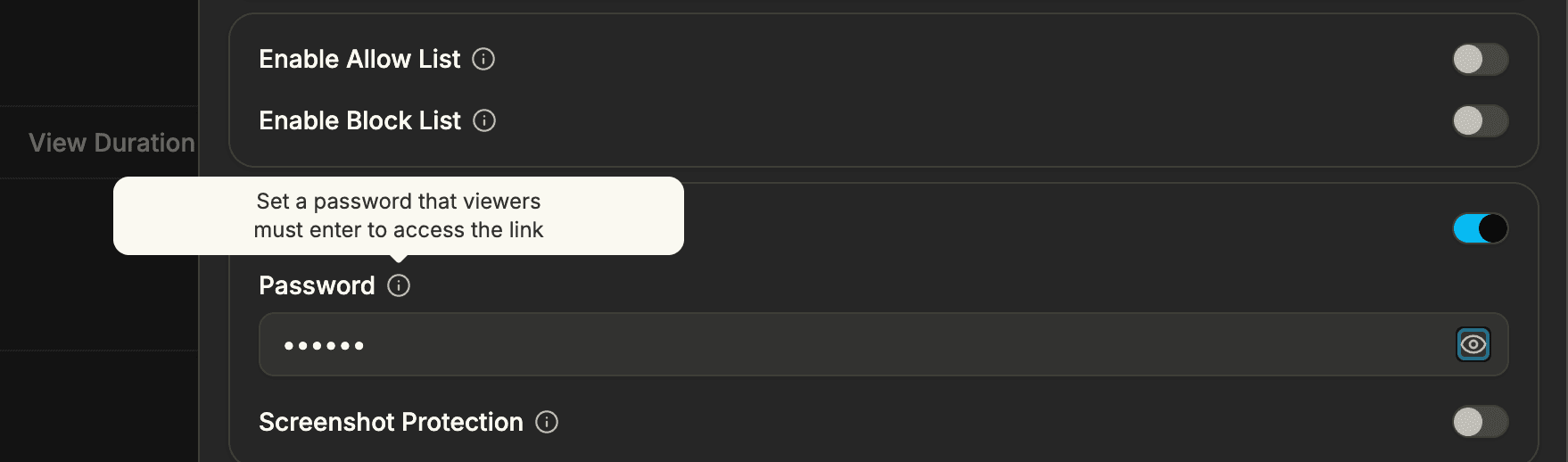
The cleanest way to protect shared documents is to put the password on the link, not only on the file. One link can point to a single document (PDF, Word, spreadsheet, video) or to a full data room. Anyone with the link must enter the password to open it, so only people you give the password to can view. You keep control: set link expiry, revoke the link, or change the password anytime. This guide shows you how to protect documents and links with a password using Sendpaper, for any supported file type.
Why Protect Documents and Links with a Password?
Shared links can leak. If the link has no gate, anyone who gets it can open the content. Adding a password to the link means only people you give the password to can view the document or data room. You can still share the link in email, Slack, or your CRM; the password is the extra step that limits access. Best practice is to combine password with link expiry and, when needed, view-only or email allow list so you control who sees what and for how long.
What You Can Protect with a Password
Links by plan
The number of links you can create (and protect with a password) depends on your plan. The table below is a guide; see Pricing for the latest.
| Plan | Links |
|---|---|
| Free | 49 |
| Personal Pro | Unlimited |
| Advance | Unlimited |
| Dataroom Pro | Unlimited |
| Dataroom Advance | Unlimited |
| Enterprise | Unlimited |
Password protection is available on all plans; upgrade to Personal Pro or above for more links.
Steps to Protect Documents and Links with a Password
| Step | Action |
|---|---|
| 1 | Upload your document(s) or create a data room and add files. |
| 2 | Create a link for the document or for the data room. Name it so you can find it later. |
| 3 | In link settings, turn on Password Protection and set the password. Share the password only with people who should have access. |
| 4 | Optionally set link expiry, view-only, or email allow list for tighter control. |
| 5 | Share the link (email, Slack, CRM). Send the password separately (e.g. different channel or call). |
| 6 | Use the dashboard to see who opened the link and when. Change the password or revoke the link when needed. |
Detailed Guide: Protect Your Documents and Links
1. Upload Documents or Set Up a Data Room
Upload the file(s) you want to share. For a single document, create one link. For many files (e.g. due diligence, fundraising), create a data room, add folders and files, then create a link to the room. The password you set in the next step applies to that link. We support PDF, Office, video, images, and more.
2. Create a Link and Open Link Settings
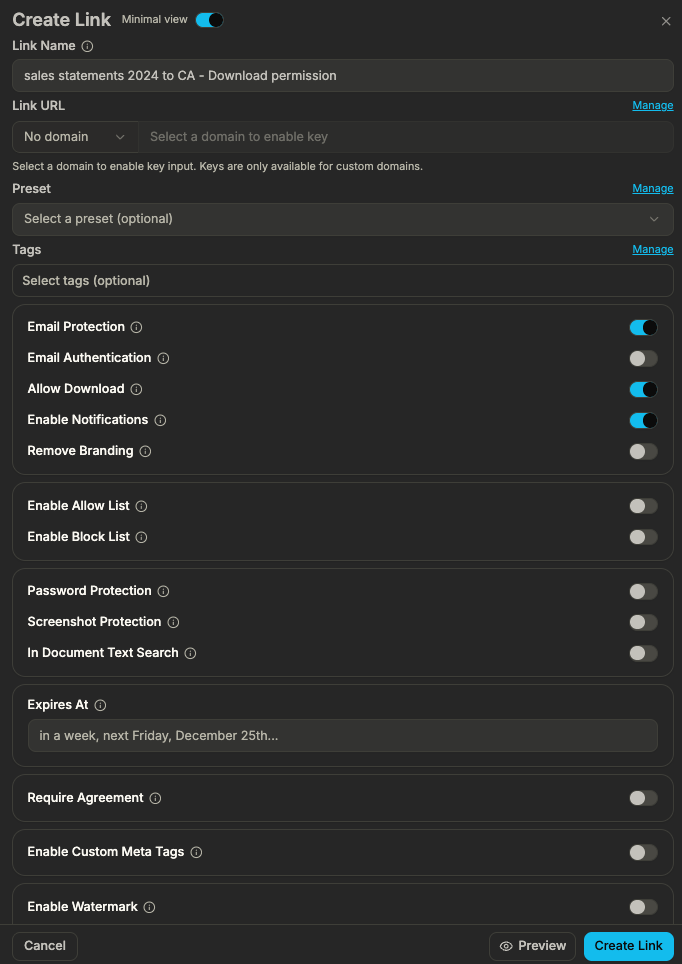
3. Turn On Password Protection and Set the Password
- Enable Password Protection (require a password to access the link).
- Enter a strong password and share it only with intended viewers. We encrypt link passwords at rest; they are never stored in plain text.
- Save the link. The URL stays the same; only people with the password can open it.
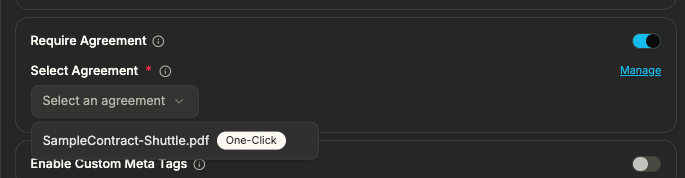
Share the password through a different channel than the link (e.g. link in email, password in a separate message) to reduce the risk of someone else opening it.
4. Add link expiry, view-only, or allow list (optional)
You can combine password with any of these; they all apply to the same link.
5. Share the Link and Password
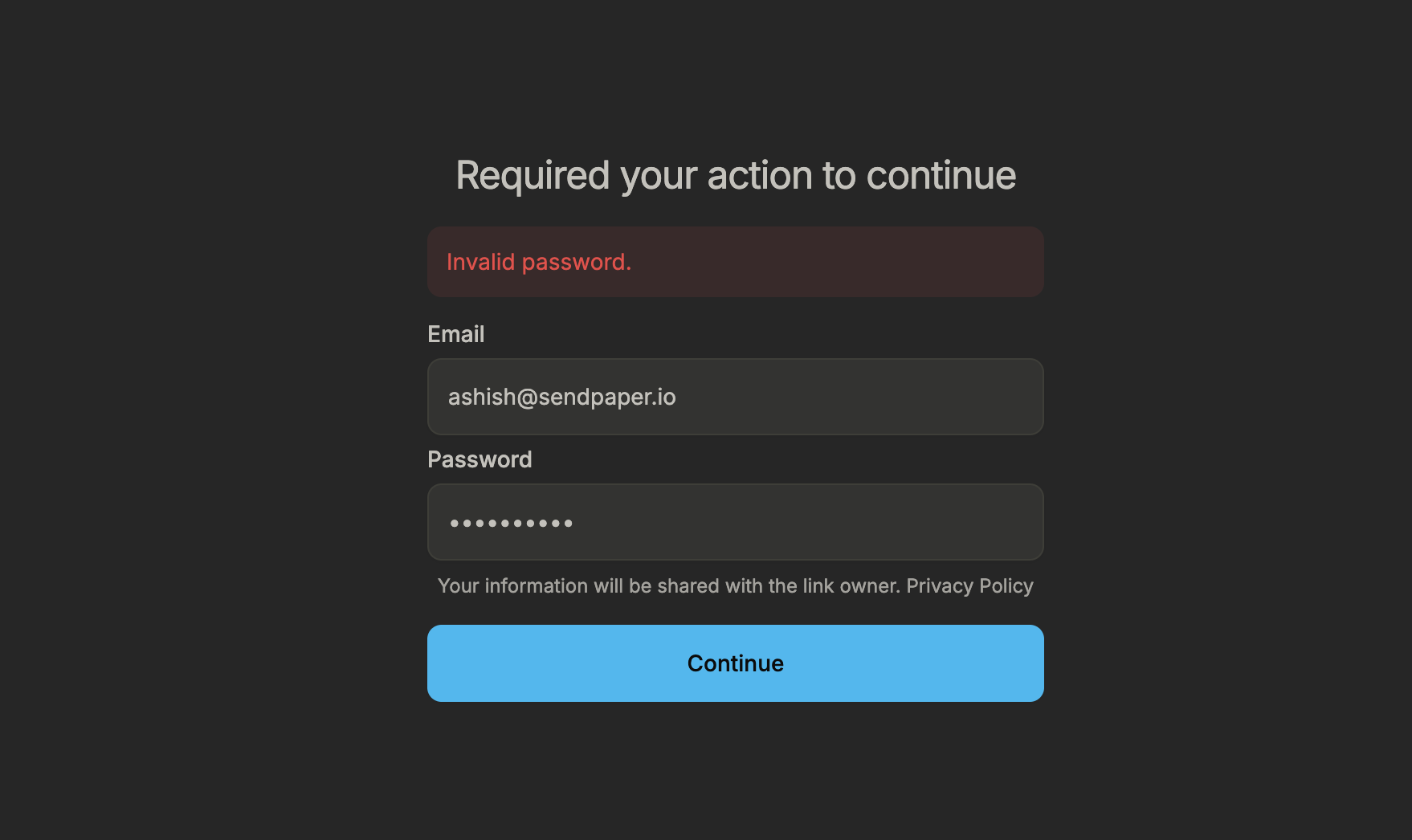
Copy the link from the dashboard and send it to the right people. Send the password separately. Viewers open the link in any browser, enter the password when prompted, and see the document or data room. No extra software required. If someone enters the wrong password, they see a clear error screen and can try again.
6. Monitor and Revoke When Needed
In the dashboard you can see who opened the link (when email verification or allow list is used), when they viewed, and how long they spent. To revoke access, change the password or delete the link so it no longer works.
Use Cases: Protecting Documents and Links
- Single-document links - One link to one file: PDF, Word, Excel, PowerPoint, image, or video. Turn on password protection for that link; viewers enter the password and see the file in the browser.
- Data room links - One link to a full virtual data room. Password protects the room; inside, granular permissions control which folders and files each viewer can see. Same password gate, then per-folder or per-file rules.
- Any supported type - Password is set on the link, so it works for every file type we support: documents, spreadsheets, presentations, images, video, and more. No separate setup per format. Create a new link for the document or data room. In the link settings you’ll see Password Protection, link expiry, view-only, email protection, watermarking, and other options. Use a clear link name (e.g. “Q4 deck - Series A”, “Due diligence room - Acme”) so you can manage and revoke the right link later.
- Link expiry - Set a date (and optionally time) after which the link stops working. Use for time-sensitive deals or process-bound sharing.
- View-only - Disable download so viewers can read or watch in the browser but not save the file.
- Email allow list - Restrict access to specific email addresses or domains. Only those viewers can open the link (after entering the password if it’s on). See secure document sharing for more.
- Pitch decks and investor updates - One link, one password; share the password only with the investors you’re talking to. Add link expiry when the round closes. For PDF-only steps, see How to password protect a PDF. Fundraising & investor relations.
- Data rooms - Protect the data room link with a password, then use granular permissions to control who sees which folders and files. M&A due diligence.
- Contracts and term sheets - Limit access to the parties in the deal. Use view-only if you don’t want local copies. Set link expiry to match the negotiation window.
- Board and internal materials - Share board packs or internal docs via a password-protected link. Use link expiry and view-only; check the dashboard to see who opened and when. Board & governance.
In each case the password is on the link; you control who has it and you can revoke or expire the link anytime.
How We Handle Your Password
Link passwords are not stored in plain text. We encrypt them at rest (AES-256-CTR with a unique IV per value) and verify them on the server when a viewer submits the password. Traffic is over TLS. For full details, see Encryption for document and data room links.
Open Source and Transparency
Sendpaper is open source. The code that implements password protection, link encryption, and access control is public. You can inspect how we store and verify link passwords and how we enforce link expiry and view-only. The same logic runs whether you use our hosted service or run Sendpaper yourself. If you self-host, you get the same password-on-link behaviour with full control over where your data and keys live. For teams that need to audit their document-sharing stack, open source makes that possible. Encryption and open source.
About the author

Open source, transparency, and licensing
Sendpaper is open source: you can inspect the code and self-host for full control. We also offer licensing and hosted options for teams that need enterprise support or prefer not to run the stack themselves. For questions about licensing, open source hosting, or self-hosting, contact us and we'll help you choose the right option.
Frequently Asked Questions
Related posts
- Product, GuidesData Room Groups: One Place for Permissions and Analytics | SendpaperUse data room groups in Sendpaper to manage permissions and analytics for investors, buyers, and teams. Create a group once, reuse it on links, and see group-level activity without spreadsheets.
- Product, GuidesHow Sendpaper renders files as images in the viewer (and why it matters) | SendpaperLearn how Sendpaper converts uploaded PDFs into page images for a fast, consistent viewer. We cover what formats can be shown, what processing means, and why a loader appears.
- Product, SecuritySecure PDF Document Sharing: Watermarking, Screenshot Protection, View-Only | SendpaperShare PDFs securely with watermarking, screenshot protection, view-only, and one-click agreement. Password and access control in Share Link and Access Control. One sidebar, all options.