Data Room Groups: One Place for Permissions and Analytics | Sendpaper

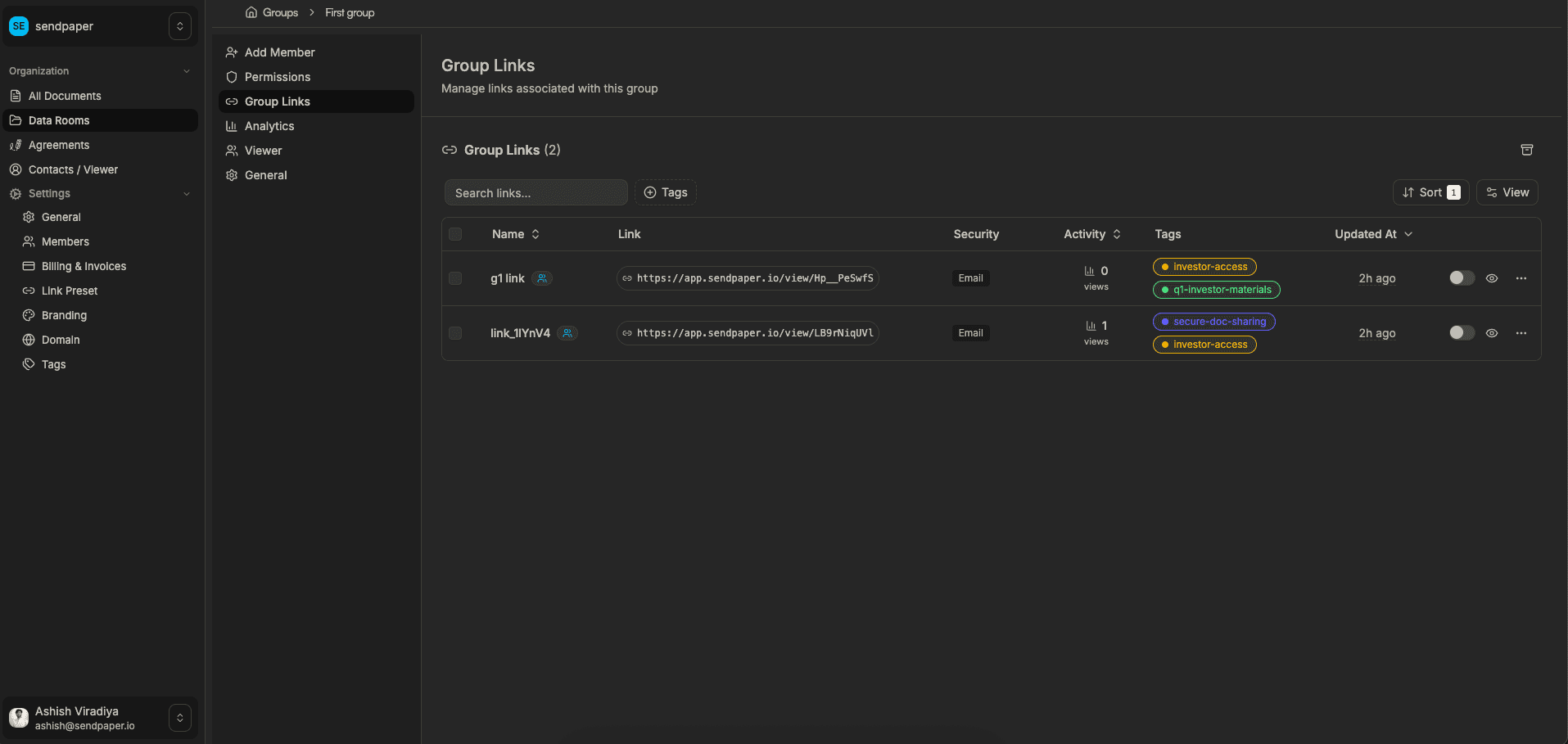
When you run a data room, you rarely share everything with “everyone”. You share the same room with multiple groups: different investors, buyers, advisors, and internal teams - and each group should see something slightly different.
Without a groups feature, you end up cloning rooms, maintaining your own spreadsheets, or manually keeping track of who should see what. Sendpaper data room groups give you a cleaner option: create a group once, attach it to links, and see group-level analytics without spreadsheets.
In this guide we’ll cover:
- what data room groups are
- how to create a group and add members
- how group-based permissions work on links
- where to see analytics per group
- common workflows (fundraising, M&A, board)
What are data room groups?
A data room group is a reusable list of viewers (emails) that you treat as one unit: “Lead investor”, “Buyer A”, “Buyer B”, “Legal counsel”, or “Board”.
- You define the group name and members once.
- You attach the group to data room links or specific folders/files.
- You see activity and analytics by group, not just per individual.
This keeps your room structure stable while you tailor access and reporting by who is on the other side.
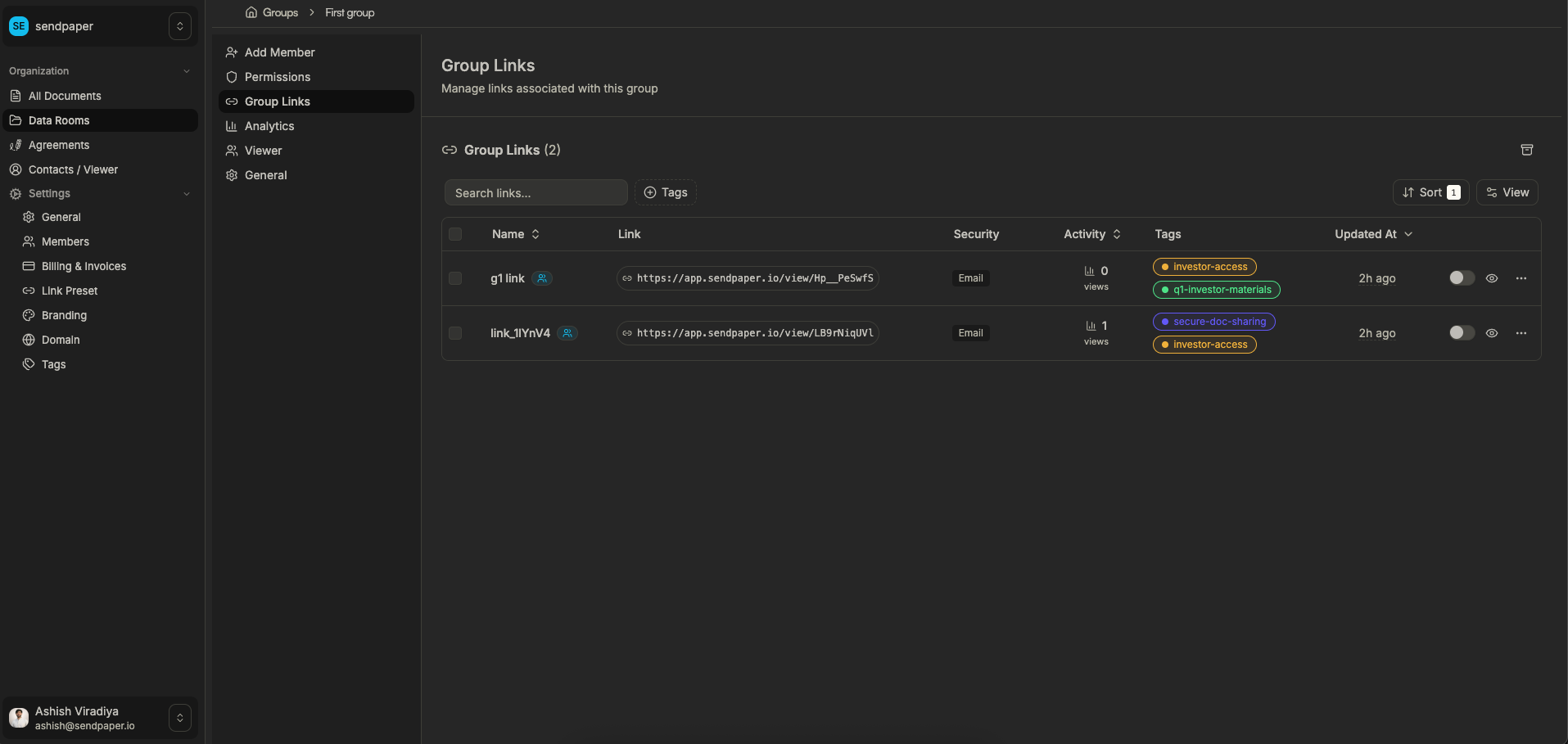
Data room groups in Sendpaper, each with their own links and access.
Creating a new data room group
You typically create groups early in a process (for example, when you know which funds or buyers are involved).
- Give the group a clear name (e.g. “Buyer A”, “Buyer B”, “Existing investors”).
- Add email addresses for everyone who should sit in that group.
- Save - you can reuse this group on multiple links.
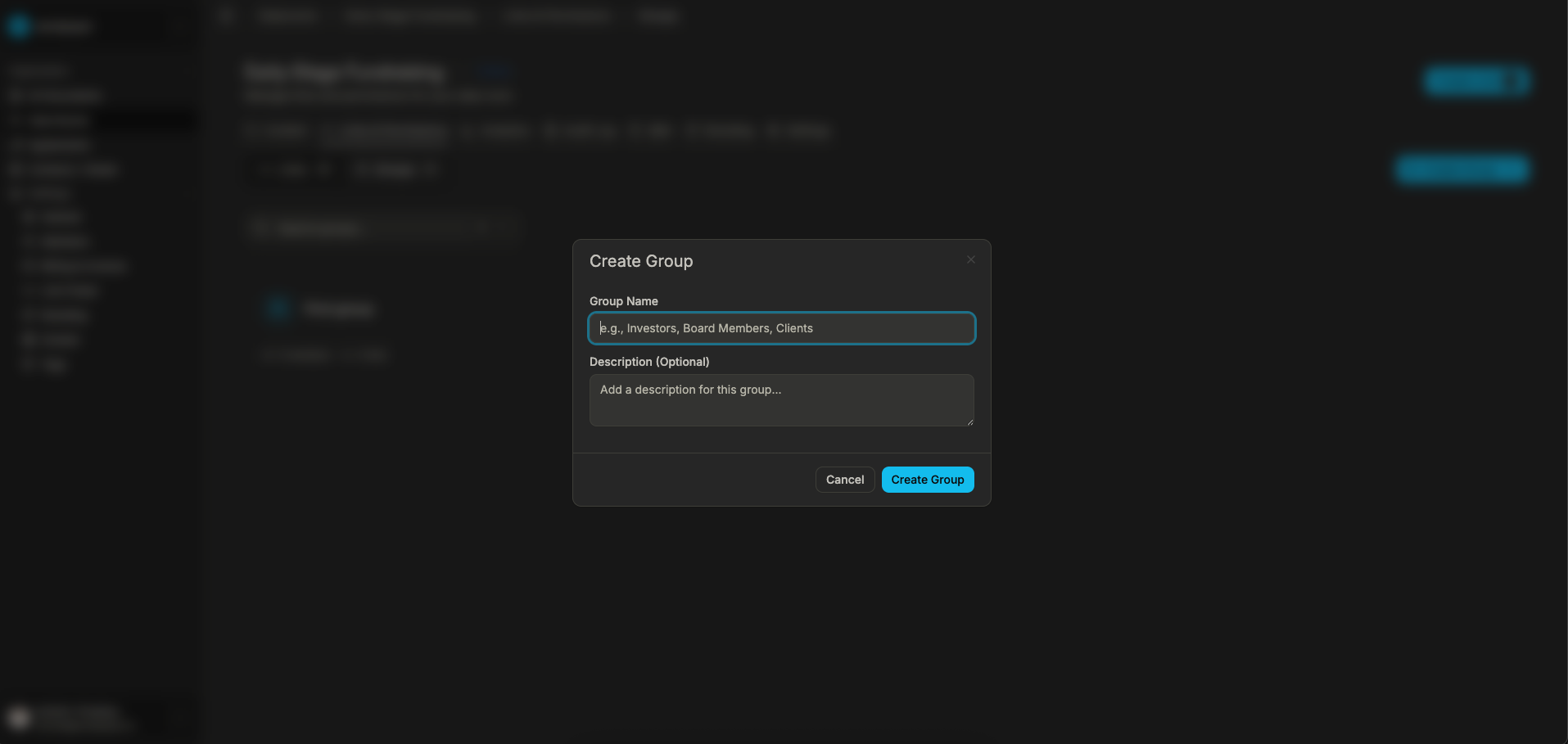
Create a data room group with a name and member list.
You can update a group later (for example, to add a new associate from a fund) without rebuilding links from scratch.
Adding and managing members in a group
Groups are most useful when they stay accurate as the deal or project evolves.
- Add new members as they join the process.
- Remove people when they leave a firm or should no longer have access.
- Use tags or labels consistently so you can scan groups quickly.
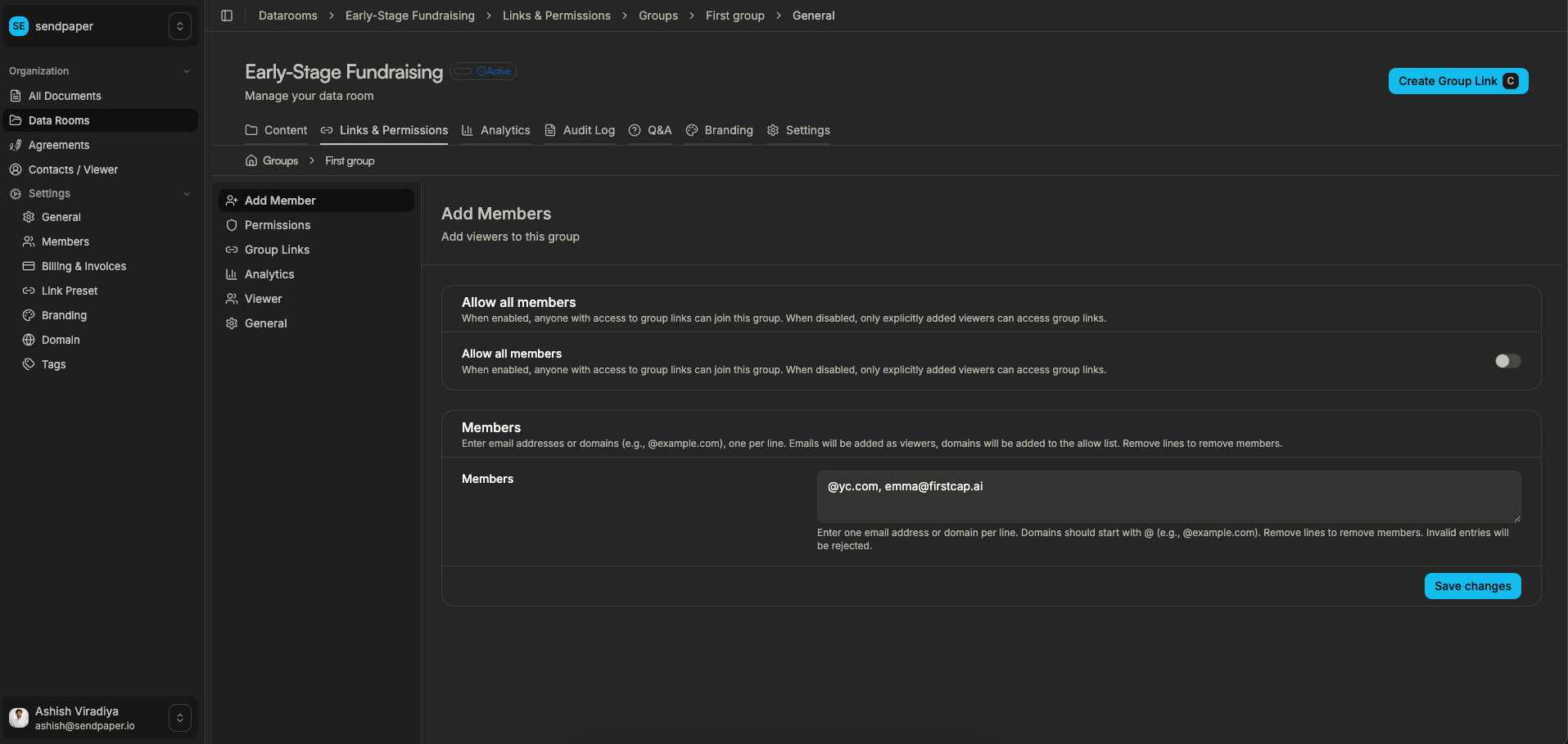
Add members to a group and keep the list up to date as your process changes.
Group-based permissions on folders and files
Groups really pay off when you combine them with granular permissions in the data room.
You can:
- give a group access to the entire room
- give a group access only to specific folders (e.g. “HR” or “Customer contracts”)
- combine group access with individual overrides when needed
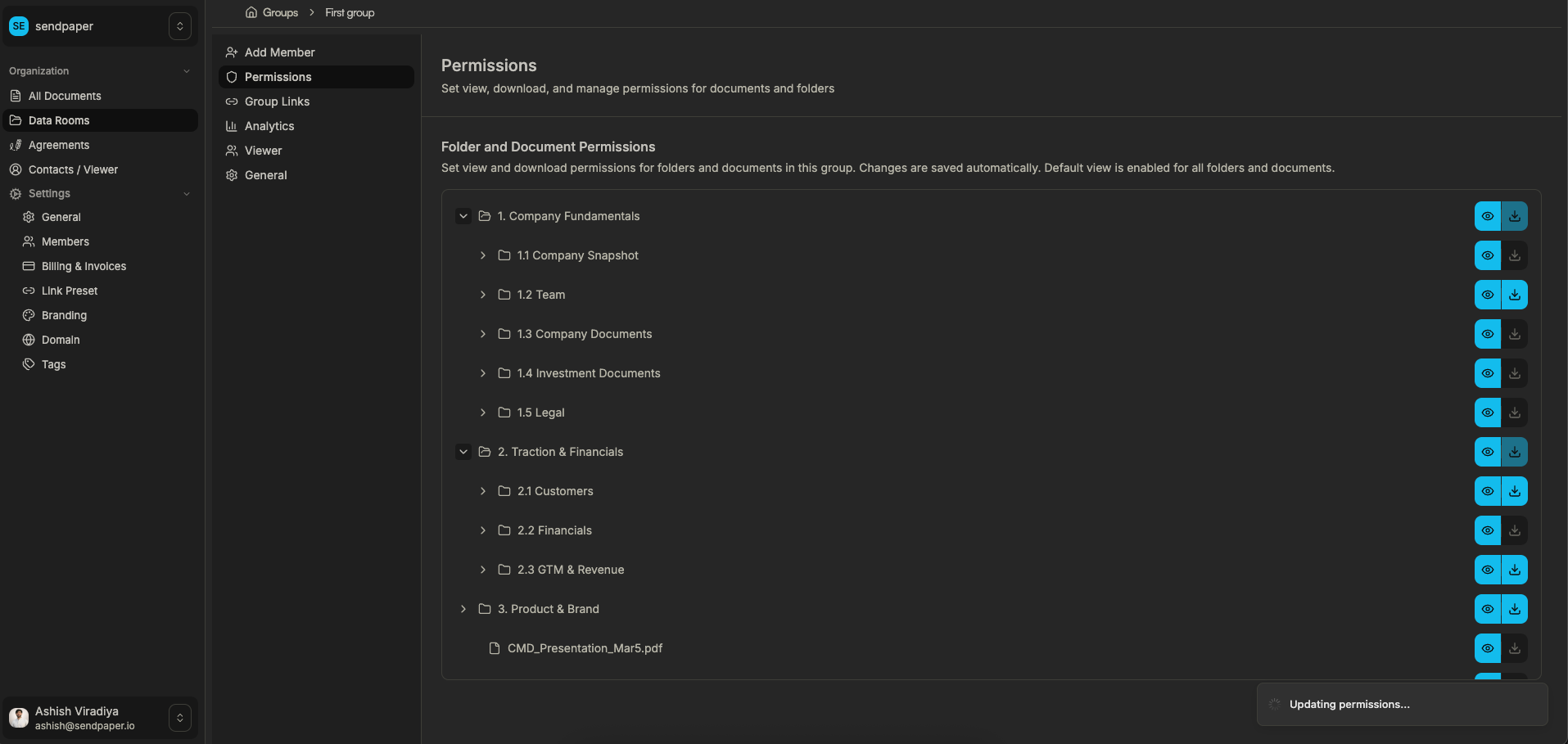
Set which folders and files a group can access in the room.
This is easier to reason about than individual permissions everywhere. You think in terms of “what can Buyer A see?” instead of chasing dozens of separate entries.
Group analytics: most visited docs and recent visits
During a process you want to know which groups are actually engaging with the room.
Sendpaper shows group-level analytics, such as:
- most visited documents for a group
- recent visits from that group
- how attention shifts over time
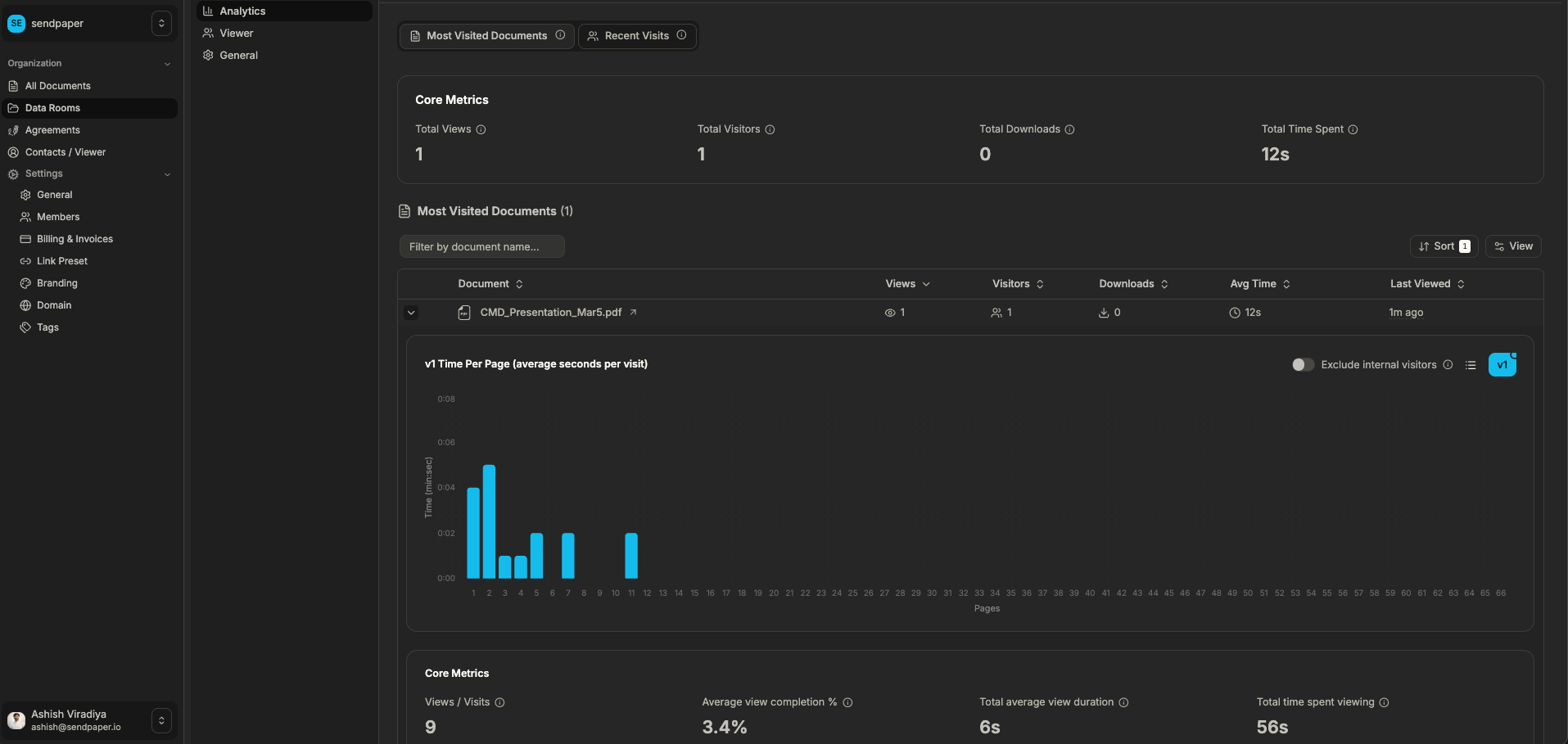
Group-level view of which documents get the most attention.
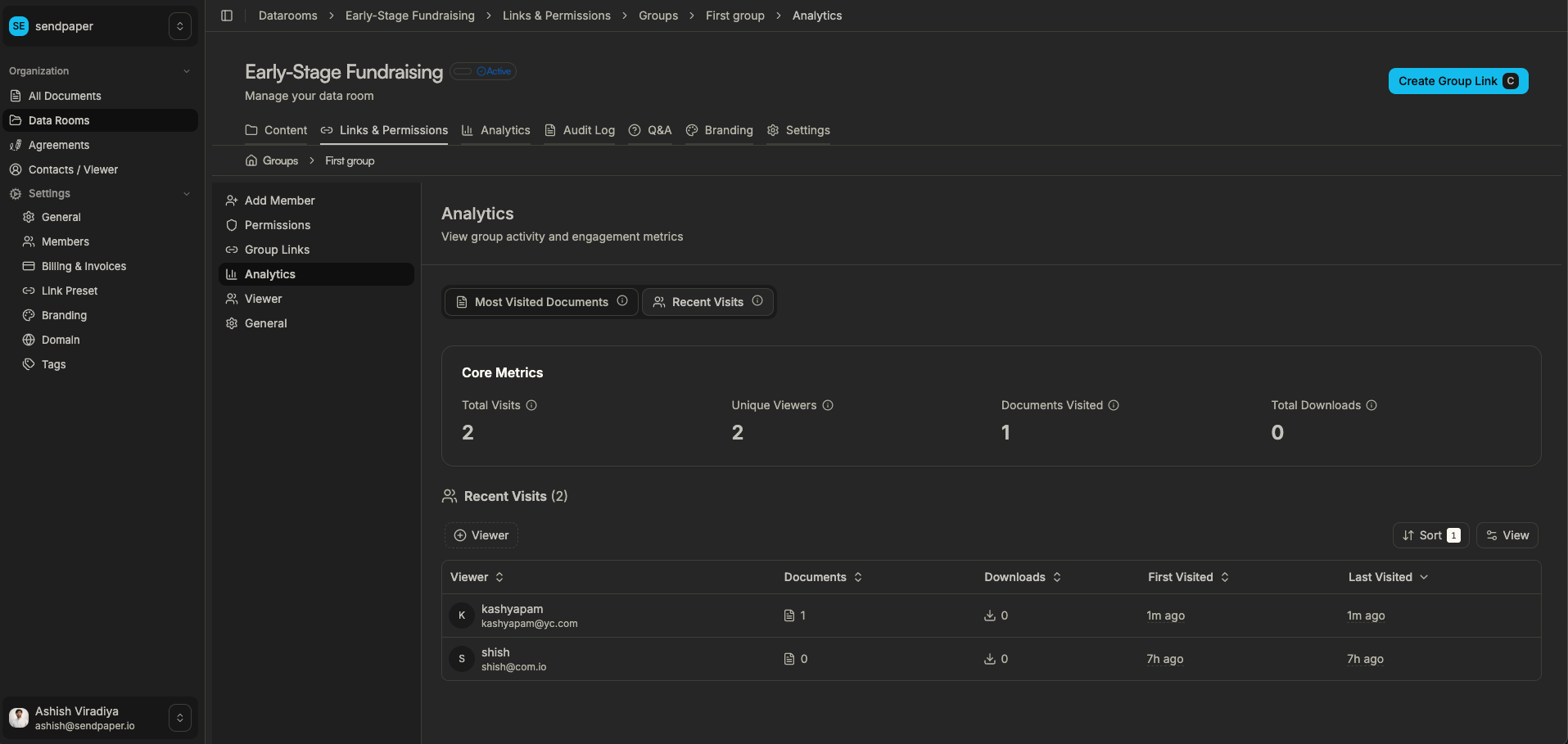
Recent visits per group, so you see who has been active lately.
This makes it easy to answer questions like:
- Which buyer has actually gone deep in the room?
- Which investor is still only skimming the overview?
- Has the board looked at the latest update?
How links work with groups
Groups and links work together:
- you can create different links for different groups that all point to the same underlying room
- access control (password, expiry, allow/block lists) still applies per link
- analytics roll up both at link level and group level

Combine group membership with link settings to keep access simple and auditable.
This avoids cloning entire rooms for each interested party. You keep one structure, one upload workflow, with clear separation in access and reporting.
Typical workflows for data room groups
Some common patterns:
- Fundraising - One data room, groups for “Lead investor”, “Other VCs”, “Existing investors”. Each group can see slightly different folders (e.g. detailed customer lists reserved for lead).
- M&A sell-side - One room, groups for “Buyer A”, “Buyer B”, “Buyer C”, “Advisors”. Each buyer group sees only its own Q&A and any buyer-specific docs.
- Board and leadership - One room, groups for “Board”, “Management”, “Observers”. Board sees everything; observers might see a reduced set of folders.
In each case, groups help you keep control without making your room or analytics impossible to manage.
How to get the most out of data room groups
You will get the most value from groups when you:
- Name groups after how you talk about them internally - use the same labels you use in emails and deal notes (e.g. “Buyer A - strategic”, “Existing investors”) so everyone on your side knows who is who at a glance.
- Create groups before you invite people - set up “Lead investor”, “Other VCs”, “Buyer A/B/C” and “Advisors” first, then add people into those buckets instead of adding everyone ad‑hoc.
- Align folder structure and groups - think “Which top-level folders should each group see?” and set group permissions at that level, so you are not micro-managing every individual file.
- Use groups to compare engagement - check which group has the most visited docs and recent visits when you need to prioritize follow-ups; the most engaged groups usually deserve the next call.
- Review groups at each stage of a process - when you move from light sharing to full due diligence (or from first board pack to recurring meetings), quickly review who sits in each group and whether access should expand or narrow.
- Keep groups small and meaningful - avoid “Everyone” groups; smaller, purpose-based groups make your analytics and access decisions clearer.
How groups fit with the rest of Sendpaper
Groups sit alongside the rest of the data room stack:
- Granular permissions - groups are a higher-level way to apply folder/file permissions you already have.
- Audit logs - activity is still recorded in audit logs for compliance.
- Analytics - group-level analytics complement page-by-page and per-document analytics, not replace them.
- Access control - groups respect share link and access control settings.
Summary
Data room groups in Sendpaper help you manage who sees what and who is actually engaging without copying rooms or maintaining spreadsheets. You define groups once, attach them to links and permissions, and get clear group-level analytics on top of your existing data room structure.
Related posts
- Product, GuidesHow Sendpaper renders files as images in the viewer (and why it matters) | SendpaperLearn how Sendpaper converts uploaded PDFs into page images for a fast, consistent viewer. We cover what formats can be shown, what processing means, and why a loader appears.
- Product, SecuritySecure PDF Document Sharing: Watermarking, Screenshot Protection, View-Only | SendpaperShare PDFs securely with watermarking, screenshot protection, view-only, and one-click agreement. Password and access control in Share Link and Access Control. One sidebar, all options.
- Product, GuidesSign In and Onboarding Guide: Get Started | SendpaperHow to sign in and complete onboarding with Sendpaper. Google or email magic link, create your organization, pick a document storage region, then share a document or create a data room.