Secure PDF Document Sharing: Watermarking, Screenshot Protection, View-Only | Sendpaper

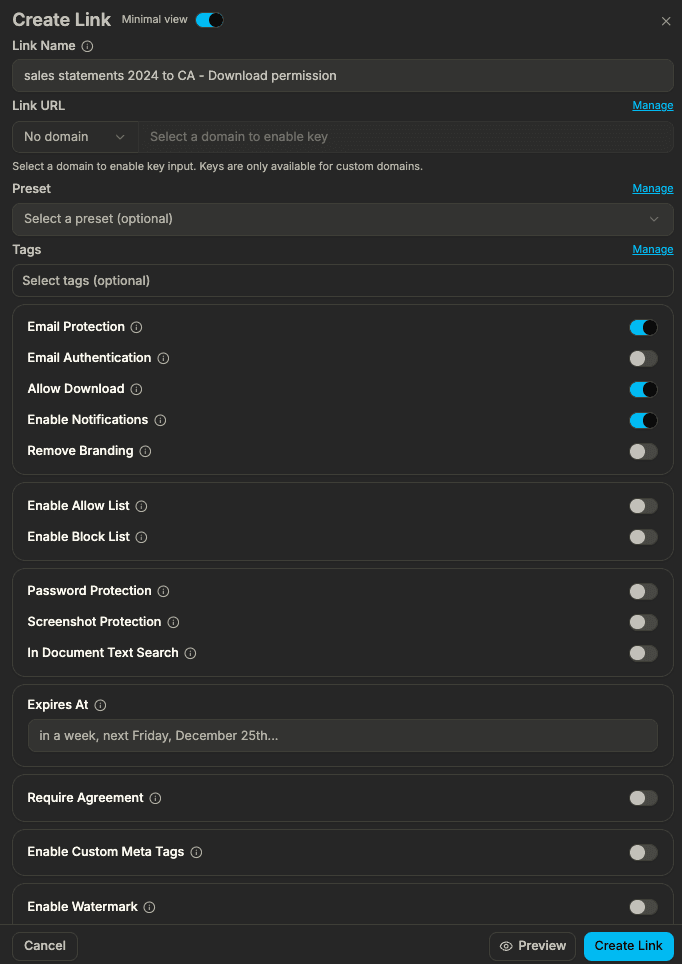
This guide covers secure PDF and document sharing options: watermarking, screenshot protection, view-only (no download), one-click agreement, in-document search, and custom meta tags. For password, link expiry, email protection, allow/block list, and notifications, see Share Link and Access Control.
One Place to Control Your Document Link
When you create a link for a document, all options live in the same sidebar: access control, security (including screenshot protection), watermarking, and expiration. For data rooms, the same applies to the room link. Access control (password, expiry, email, allow/block) is described in Share Link and Access Control; below we focus on the rest.
Watermarking
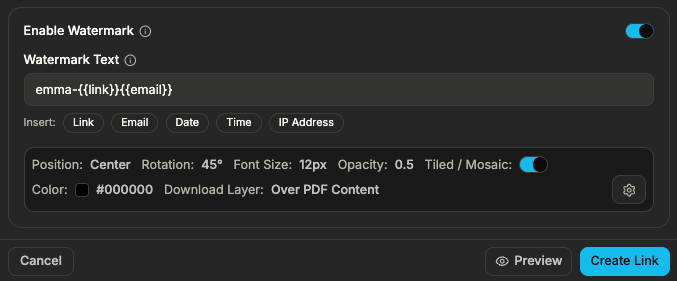
Add visible or subtle watermarks to your PDF so that if someone shares a copy, you can see whose link it came from. You can set watermark text (e.g. viewer email or name), position, and opacity. Watermarks are applied per view and help deter leaking. The video below shows the watermarking flow in the product.
Screenshot Protection
Screenshot protection makes it harder for viewers to capture the document via screenshots or screen recording. When enabled, the viewer sees the document in a protected viewer. This reduces casual copying and is useful for sensitive PDFs. The short clip below shows how it behaves.
View-Only and Download Control
You can disable download so viewers can only view the PDF in the browser. That reduces the number of copies in the wild. Enable or disable “Allow download” (or equivalent) when creating or editing the link. Combine with watermarking and screenshot protection for high-sensitivity documents.

One-Click Agreement (Optional)
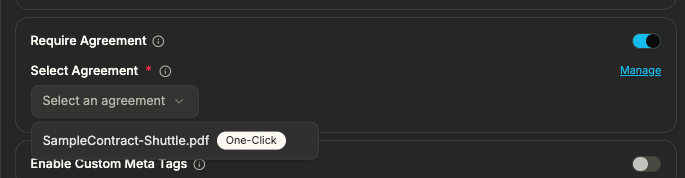
For contracts or terms, you can require viewers to accept an agreement before they see the document. They see the agreement text and confirm with one click; only then does the document open. That gives you a record of acceptance. Agreement protection is configured in the link settings.
In-Document Search
Viewers can search inside the PDF for text. That makes long documents easier to use without leaving the secure viewer. The clip below shows in-document search in action.
Custom Meta Tags on Links
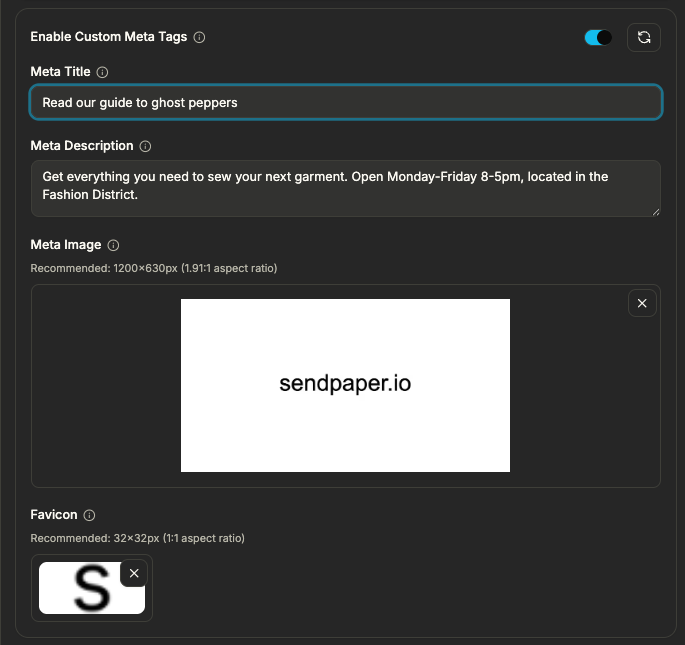
You can set custom meta tags (title, description) for the link page. That helps when the link is shared on social or in chat: the preview shows your chosen title and description instead of generic text.
Steps to Share a PDF Securely
| Step | Action |
|---|---|
| 1 | Upload your PDF (or create a data room) in the dashboard. |
| 2 | Create a new link for the document. |
| 3 | Set access control (password, expiry, email, allow/block list) as needed; see Share Link and Access Control. |
| 4 | Turn on Watermarking and set text/position if you want per-viewer watermarks. |
| 5 | Turn on Screenshot protection if you want to restrict capturing. |
| 6 | Disable Allow download if you want view-only access. |
| 7 | Save the link and share it. |
Link limits by plan are in Share Link and Access Control and Pricing.
Frequently Asked Questions
Related posts
- Product, GuidesData Room Groups: One Place for Permissions and Analytics | SendpaperUse data room groups in Sendpaper to manage permissions and analytics for investors, buyers, and teams. Create a group once, reuse it on links, and see group-level activity without spreadsheets.
- Product, GuidesHow Sendpaper renders files as images in the viewer (and why it matters) | SendpaperLearn how Sendpaper converts uploaded PDFs into page images for a fast, consistent viewer. We cover what formats can be shown, what processing means, and why a loader appears.
- Product, GuidesSign In and Onboarding Guide: Get Started | SendpaperHow to sign in and complete onboarding with Sendpaper. Google or email magic link, create your organization, pick a document storage region, then share a document or create a data room.