Who sees which folder, who can download which file. You decide.

Your data room. You choose who sees what.

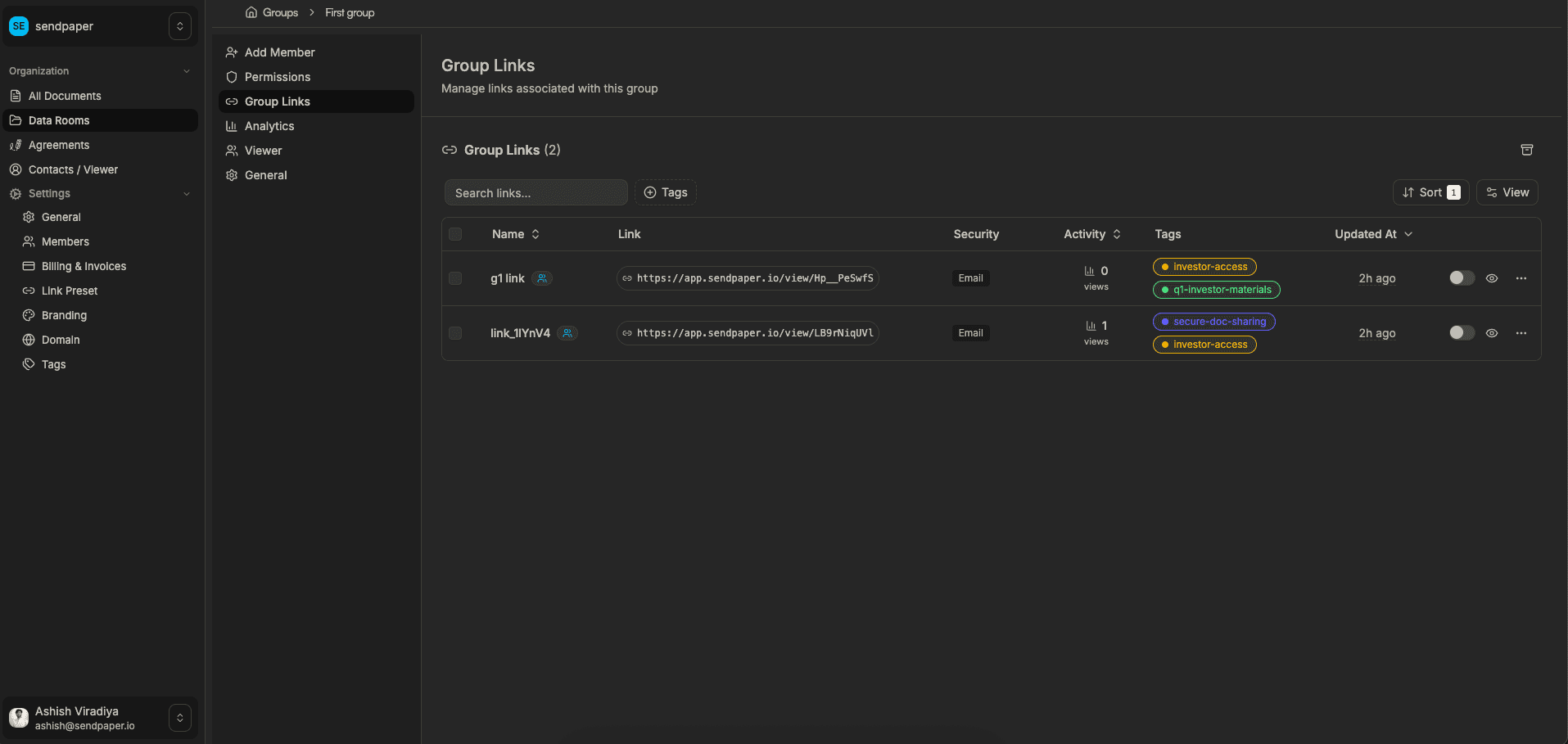
One link gets Financials only. Another gets the full room. Toggle view and download by folder and by document, per link or per group. Stage access as the deal moves. And see who opened what, when.

No credit card required.
Granular permissions: set view and download per folder and file in your data room

What you get with granular permissions.

01 feature folder

Folder-level control

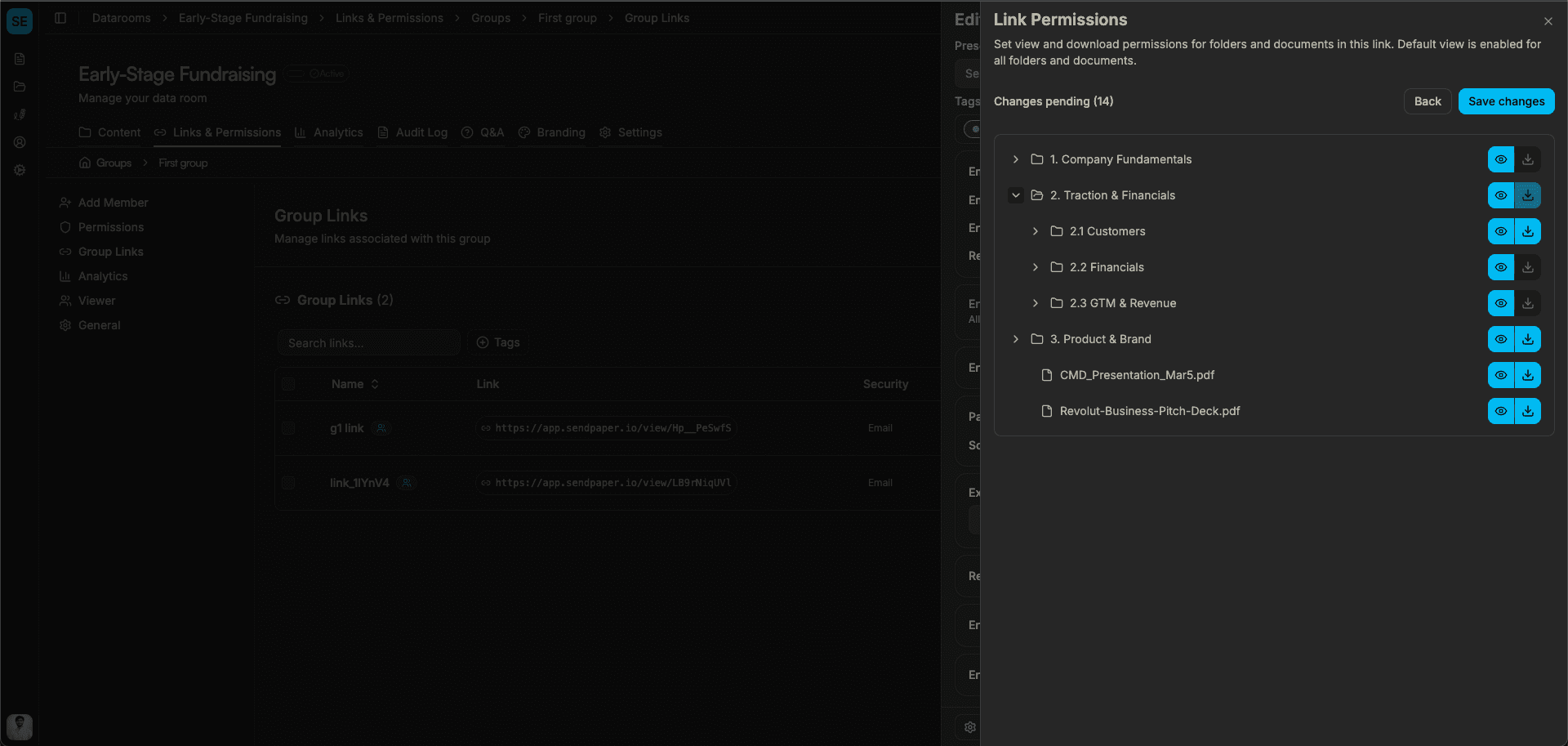
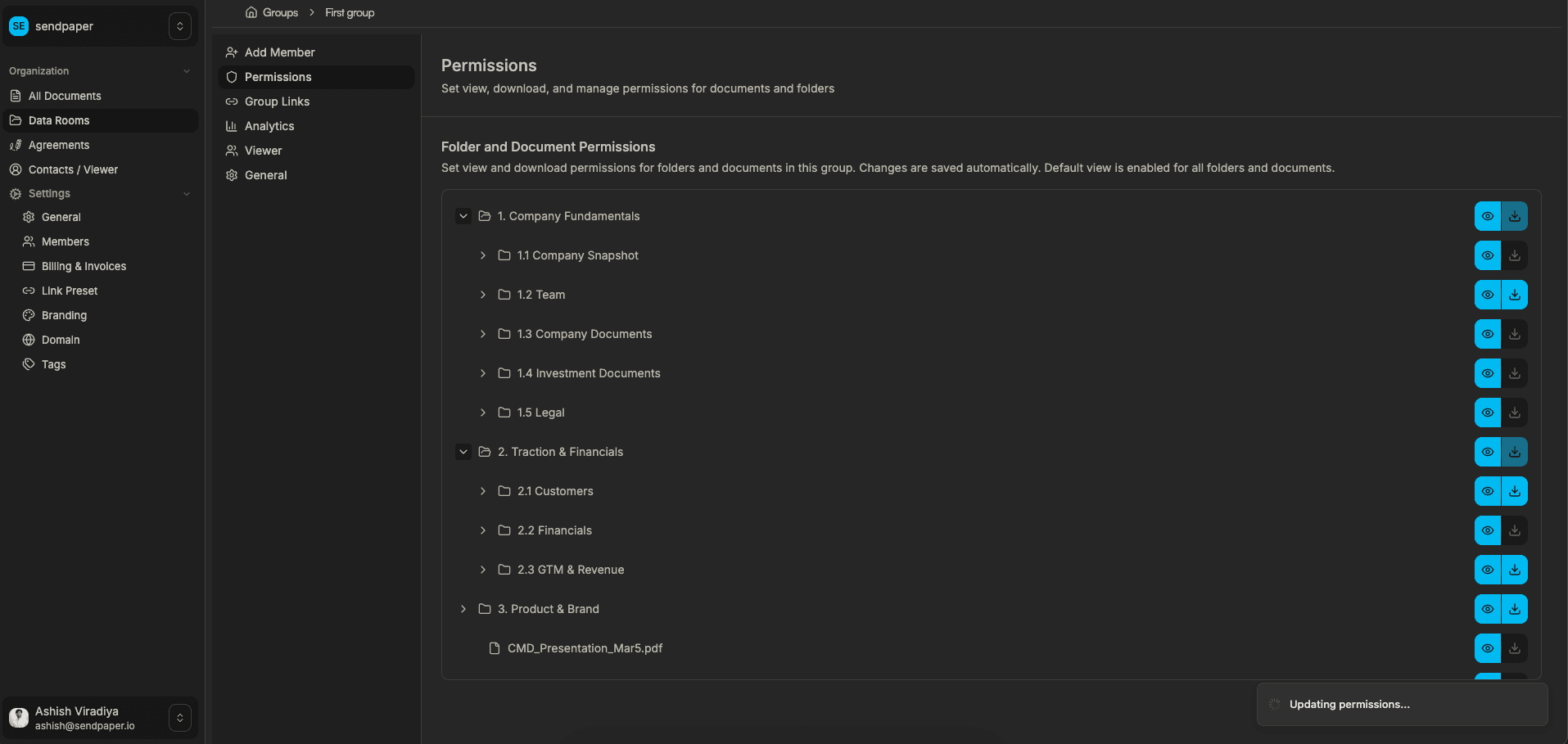
Whole sections (Financials, Legal, whatever you name them) can follow one rule. Turn a folder on or off for a link or group and you’re done. No need to tick every file inside it.

02 feature folder

File-level control

Sometimes one document in a folder needs to be different. Maybe it’s view-only while the rest can be downloaded. Override at the file level and the rest of the folder keeps its rule.

03 feature folder

View and download control

Reading in the browser is one thing; saving a copy is another. We let you choose. Sensitive stuff can be view-only. When they need a file for their records, flip download on for that item.

04 feature folder

Progressive access

Deals move. Today’s restricted folder can be tomorrow’s open section. Update permissions whenever you’re ready; existing links and groups pick up the change. No new links to send.

05 feature folder

Viewer groups

Give a group (investors, advisors, the other side’s team) one shared permission set. One link, same access for everyone in the group. Need to bend the rules for a single share? Per-link overrides do that.

06 feature folder

Security and tracking

Who opened what, and when? It’s all logged. Audit trail for compliance, due diligence, or just knowing who’s actually looked at the deck. Stays in sync with your permission setup.

How granular permissions work

Pick what each link or group can see and download, folder by folder and file by file. Adjust anytime. We log who opened what and when.

Permissions panel: set view and download per folder and file

1. Pick who sees what, folder by folder and file by file

  • Open the permissions panel when you’re creating or editing a link. Your full folder tree is right there.
  • Toggle view and download for each folder and each document. One link might get only the pitch deck; another gets the whole data room. You decide.
  • No guesswork. If it’s not turned on, they don’t see it.
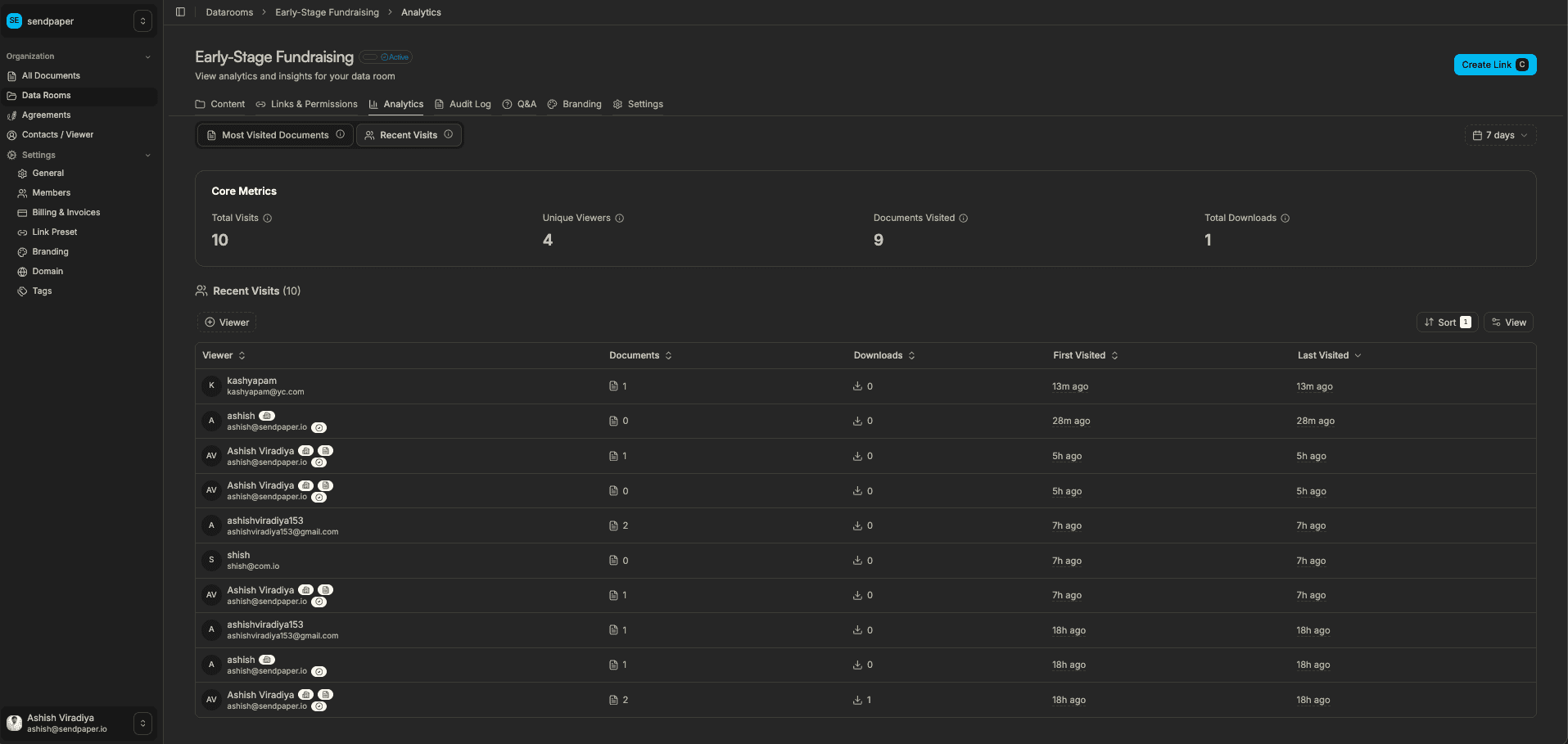
Data room analytics: recent visits and activity

2. Different links and groups, different access

  • Investor A gets Financials. The lead on the other side gets Legal and Commercial. Same room, different doors.
  • Viewer groups are handy when a whole party (e.g. your advisors) should see the same set. Give the group its permissions, then share one link. Need to tweak for a single share? Per-link overrides have you covered.
  • Works the same for fundraising, M&A, and board materials. Committees see only what’s theirs.
Viewer groups and links: manage access by group

3. Adjust anytime. Know who opened what.

  • Deal moving to the next stage? Unlock a new section. Someone’s out? Tighten access. Changes apply to existing links; no need to resend.
  • We log every view and download. Your audit trail shows who opened which folder or document and when. Handy for compliance and for knowing who’s actually reading.
  • Plays nicely with view-only, watermarking, and expiry. One place for who-sees-what and who-did-what.

See granular permissions in action

sendpaper.io

Ready to decide who sees which folders and files?

Why it helps

No more all-or-nothing

One party sees only Financials; another gets Legal and Commercial. Same room, different doors. You choose. And you can change it whenever the deal moves.

View vs download, your call

Let them read in the browser but not save a copy. Or allow download when they need a file for their records. Sensitive stuff can stay view-only; the rest can be downloadable. Per folder, per file.

Stage it. Then audit it.

Unlock a new section when the time’s right. Lock something down if the deal shifts. We log every view and download so you have a clear trail for compliance and for knowing who’s actually looked.

Frequently Asked Questions

What are granular file and folder permissions?

Instead of giving everyone the same access, you choose folder by folder and file by file who can see what (and who can download). Each link or viewer group gets its own map: this folder on, that one off, this document view-only. You’re in charge of who gets which slice of the room.

Can I set permissions per folder and per file?

Yep. At the folder level you can open or lock a whole section (e.g. Legal, Financials) with one toggle. At the file level you can override: one document inside that folder might be view-only or downloadable while the rest follow the folder rule. Handy when one file is extra sensitive.

How do permissions work with multiple links or groups?

Every link has its own permission set. So Link A might see only the deck; Link B sees the full room. Viewer groups work the same way: define what the group can see, then share one link to that group. If you need to tweak access for a single shared link (more or less than the group), per-link overrides let you do that without changing the group.

Can I change permissions after sharing?

Absolutely. Tighten or loosen access whenever you want. Lock a folder, open a new one, or flip download on or off. The link or group doesn’t need to be re-sent; when they open the room again, they see whatever you’ve set. Good for deals that move in stages.

Is there an audit trail for who accessed what?

We log every view and every download. You can see who opened which folder or document and when. That gives you a clear record for compliance and due diligence, and a simple way to see who’s actually reading. Audit and permissions work together in one place.

Get early access

Decide who sees which folders and files. Get started or book a demo.