Data Room Branding (2026): Custom Logo and Colors Per Room | Sendpaper

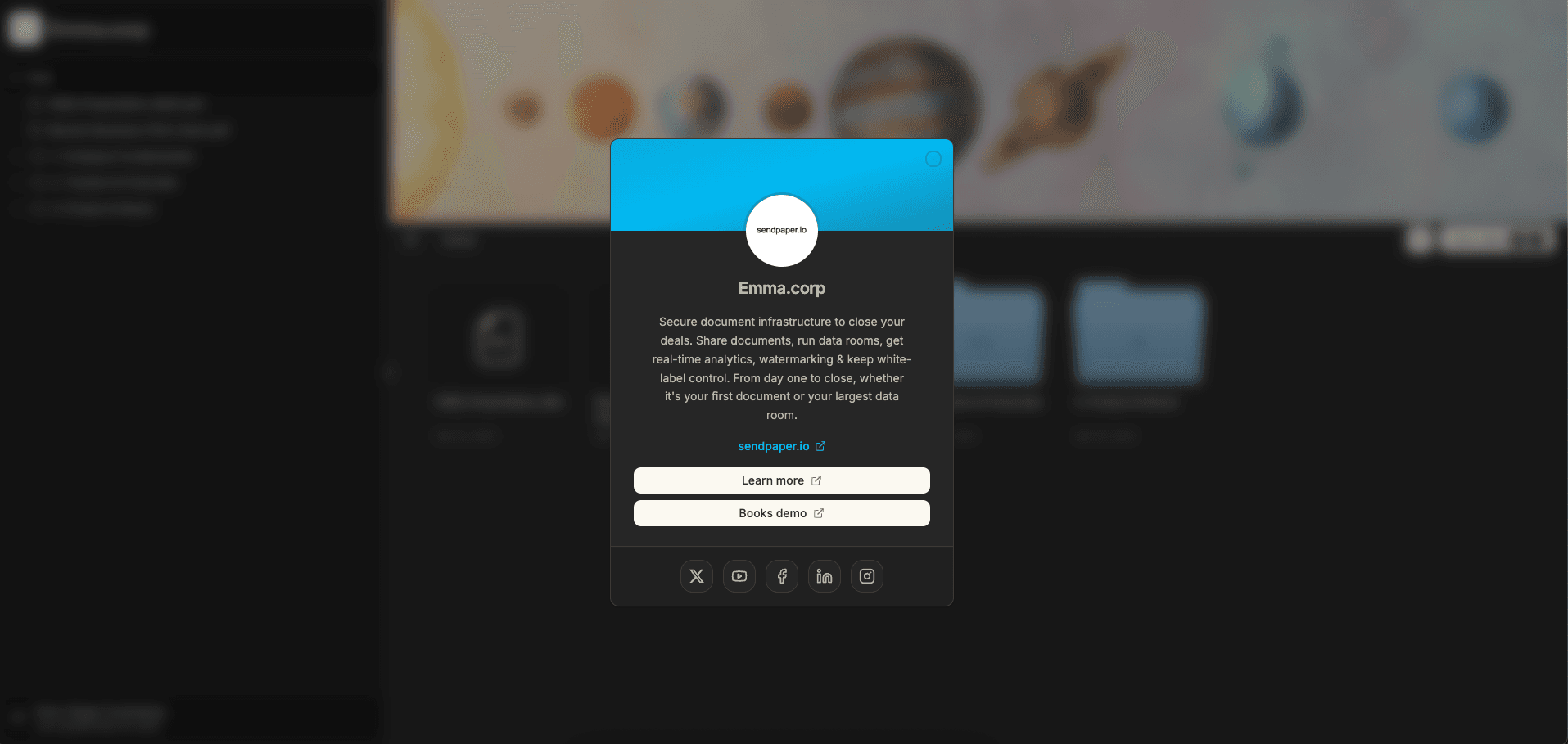
When a deal or client needs its own look, brand just that data room.
Dataroom branding in Sendpaper lets you set a custom logo, brand name, and colors for a single data room. That room’s links use this branding instead of your organization’s global branding. Use it when one deal, subsidiary, or client should look different from the rest (e.g. an M&A room with the target’s logo, or a fund with its own identity). This guide explains what dataroom branding is, how it works with global branding, and how it works in the viewer in 2026.
What you need
- Access to your Sendpaper workspace or organization.
- A plan that includes dataroom branding (see the by-plan section).
- A data room you want to brand with its own logo, colors, and optional banner or branding buttons.
What Dataroom Branding Includes
- Custom logo per room: a logo that appears in the viewer for that data room’s links only. Viewers see this logo instead of your global logo when they open links to that room.
- Brand name per room: a name shown in the viewer for that room (e.g. in the sidebar). Useful when the room represents a different entity (e.g. deal name or fund name).
- Banner per room: an optional banner image shown in the data room viewer for this room (explorer and start pages).
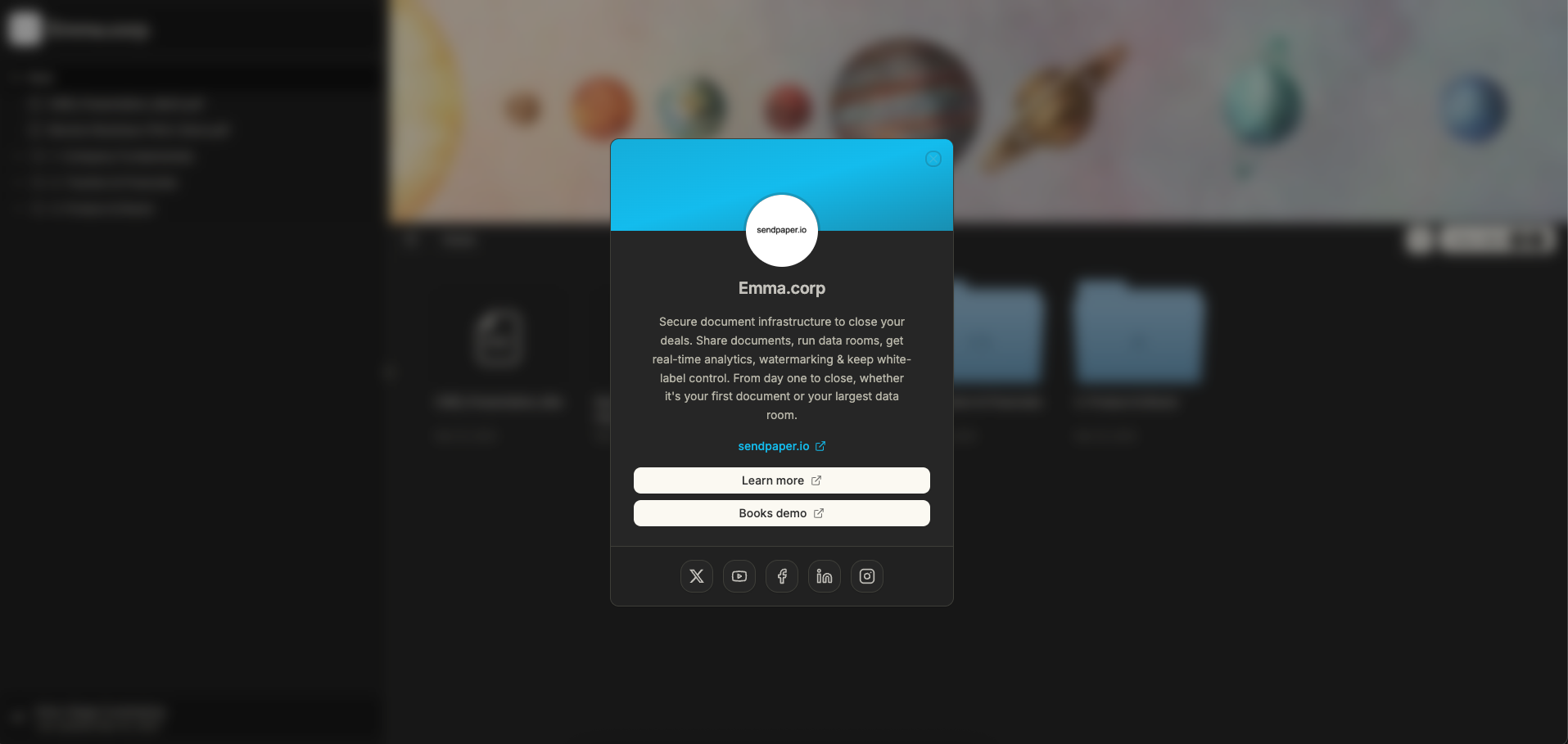
- Branding buttons per room: optional CTAs shown in the brand card in the data room viewer.
- Colors per room: brand (header) and background colors for the viewer and auth pages so this room has its own look while other links still use global branding.
- Custom title per room: optional custom title for the authentication page for that room’s links.
Dataroom branding overrides the global branding fields for that room only. Document pages inside the room use the room logo, brand name, colors, and optional auth title. Banner and branding buttons appear only in the data room viewer. All other document and data room links keep global branding unless they have their own dataroom branding.
Dataroom branding by plan
Dataroom branding is available on Dataroom Pro and Dataroom Advance (and Enterprise). The table below is a guide; see Pricing for the latest.
| Plan | Dataroom branding |
|---|---|
| Free | No |
| Personal Pro | No |
| Advance | No |
| Dataroom Pro | Yes |
| Dataroom Advance | Yes |
| Enterprise | Yes |
Global branding is available from Personal Pro; dataroom branding (per-room override) requires a Dataroom Pro or Dataroom Advance plan (or Enterprise).
How Dataroom Branding Works With Global Branding
- Global branding is the default for the whole organization (logo, name, colors, and optional auth title). It applies to every link unless overridden.
- Dataroom branding is set per data room. When you save logo, brand name, banner, colors, branding buttons, and optional auth title on the room’s Branding page, that room overrides the corresponding global branding fields.
- Fields you do not set in the data room fall back to global branding. This is how you keep one room fully branded without breaking your standard look elsewhere.
If you do not set dataroom branding for a room, that room uses your global branding (if you have it). Dataroom branding is optional and only needed when that specific room should look different.
Where to Set Dataroom Branding
- Open the data room in your dashboard.
- In the data room’s navigation (next to Content, Links & Permissions, Analytics, Audit Log, Q&A, Settings), click Branding. The page title is Dataroom Branding.
- In the form: upload the room’s logo and optional banner, enter the brand name, set brand color and background color, optionally add branding buttons, and optionally set a custom title for the auth page.
- Click Save Branding. Links to this room will now show this branding; other links are unchanged.
How Dataroom Branding Works in the Viewer
- The data room view shows the room logo, brand name, colors, and (if set) banner and branding buttons.
- Document pages opened inside that data room use the room logo, brand name, colors, and optional auth title, while banner and branding buttons are not shown.
Dataroom Branding and the Rest of Your Stack
- Custom domain - Your custom domain can be used for data room links; dataroom branding controls the logo, name, and colors inside the viewer for that room.
- Access control - Granular permissions, password, and link expiry work the same. Only the look of the viewer changes.
- Analytics and audit - Data room analytics and audit log are unchanged. Branding does not affect tracking or compliance.
Frequently Asked Questions
Related posts
- Product, GuidesData Room Groups: One Place for Permissions and Analytics | SendpaperUse data room groups in Sendpaper to manage permissions and analytics for investors, buyers, and teams. Create a group once, reuse it on links, and see group-level activity without spreadsheets.
- Product, GuidesHow Sendpaper renders files as images in the viewer (and why it matters) | SendpaperLearn how Sendpaper converts uploaded PDFs into page images for a fast, consistent viewer. We cover what formats can be shown, what processing means, and why a loader appears.
- Product, SecuritySecure PDF Document Sharing: Watermarking, Screenshot Protection, View-Only | SendpaperShare PDFs securely with watermarking, screenshot protection, view-only, and one-click agreement. Password and access control in Share Link and Access Control. One sidebar, all options.