Custom Domain for Document & Data Room Links (2026) | Sendpaper

Learn how to add a custom domain to your Sendpaper workspace so your document and data room links use your brand. No credit card required to get started.
Using a custom domain (e.g. docs.yourcompany.com or deal.yourcompany.com) for your document links and data room links makes them look like they come from your company, not a third-party tool. That builds trust with investors, buyers, and partners and can improve open and click-through rates. In this guide we will learn how to choose a custom domain for your document and data room links, and how to add it in Sendpaper.
What you need
- A Sendpaper account - If you don’t have one, sign up for free.
- A Sendpaper workspace or organization - Create or join one to manage document links and data rooms.
- A domain name - If you don’t have one, you can purchase from registrars like Namecheap, GoDaddy, Cloudflare, or Dynadot.
Not sure which custom domain to use? See the section below on how to choose a custom domain.
Custom domains by plan
On Sendpaper, the number of custom domains you can add depends on your plan. The table below is a guide; see Pricing for the latest.
| Plan | Custom domains |
|---|---|
| Free | 0 |
| Personal Pro | 0 |
| Advance | 3 |
| Dataroom Pro | 5 |
| Dataroom Advance | 15 |
| Enterprise | Unlimited |
If you’re on Free or Personal Pro, upgrade to Advance or a Dataroom plan to add custom domains for your document and data room links.
Why use a custom domain for document and data room links?
- Brand recognition - Links under your domain reinforce that the content is from you. Recipients are more likely to open a link that clearly belongs to your company.
- Trust - In fundraising, M&A, and due diligence, senders prefer links that look professional and on-brand. A generic or shared domain can feel less controlled.
- Consistency - All your secure document and data room links can live under one domain, with one place for access control, analytics, and link expiry.
- Control - You own the domain. If you change tools later, you can point the same domain elsewhere and avoid breaking every link you’ve already shared.
Custom domains work for both single document links and virtual data rooms. Same domain, same branding, whether you’re sharing a pitch deck or a full due diligence room.
Which custom domain should I choose for my document links?
When choosing a custom domain for your document and data room links, consider:
- Brand - Choose a domain that reflects your brand, ideally containing your brand name. For example, if your company domain is
yourcompany.com, you can usedocs.yourcompany.comordeal.yourcompany.comfor your shared links. - Length - Shorter is easier to remember and type. A subdomain like
docs.yourcompany.comorgo.yourcompany.comkeeps the URL clear without buying a new domain.
Here are common options for document and data room links, based on how teams use Sendpaper:
| Option | Format | Example use for document and data room links |
|---|---|---|
| Subdomain | docs.domain.com or deal.domain.com | docs.yourcompany.com for all shared docs and data rooms; deal.yourcompany.com for M&A or fundraising. No new domain to buy. |
| Different TLD | domain.link or domain.io | yourcompany.link or yourcompany.io for a dedicated “links” or “deals” identity. You buy and maintain a second domain. |
| Domain hack | doma.in | yourco.io or similar: brand name plus TLD. Creative and short; less common for document links. |
Option 1: Use a subdomain
The easiest option: you don’t need to buy a new domain. Use a subdomain of the domain you already own (e.g. docs.yourcompany.com). Recipients see your brand in the URL, and it’s clear the link is from your organization.
If your main site is yourcompany.com, you can add a subdomain like docs.yourcompany.com or deal.yourcompany.com for your document and data room links.
We recommend subdomains such as:
docs.yourcompany.com- Any shared documents and data roomsdeal.yourcompany.com- M&A, fundraising, or deal-related contentlinks.yourcompany.com- Generic for all shared linksgo.yourcompany.com- Short and familiar (e.g. “go to our deck”)
Using www as the subdomain is not supported; www typically redirects to the apex domain. Use one of the names above instead.
Option 2: Use a different TLD
You can use a different top-level domain (e.g. .link or .io) for your document and data room links. You get a short, memorable URL; the trade-off is buying and maintaining a second domain.
Examples: if your main site is yourcompany.com, you could use yourcompany.link or yourcompany.io for shared links. This works well when you want a distinct “links” or “deals” identity.
Option 3: Use a domain hack
A domain hack splits your company name so part of it becomes the TLD (e.g. yourco.io). It’s creative and short; some teams use it for product or campaign-specific links. Less common for general document and data room links, but an option if it fits your brand.
Step 1: Add a custom domain
Once you have a custom domain, you can add it to your Sendpaper workspace by following these steps:
- Navigate to your workspace’s Domains page. You can do that by clicking on the Domains link in the menu bar at the top of your workspace dashboard (or via Settings or Organization settings → Domains / Custom domain).
- Click on the Add domain button.
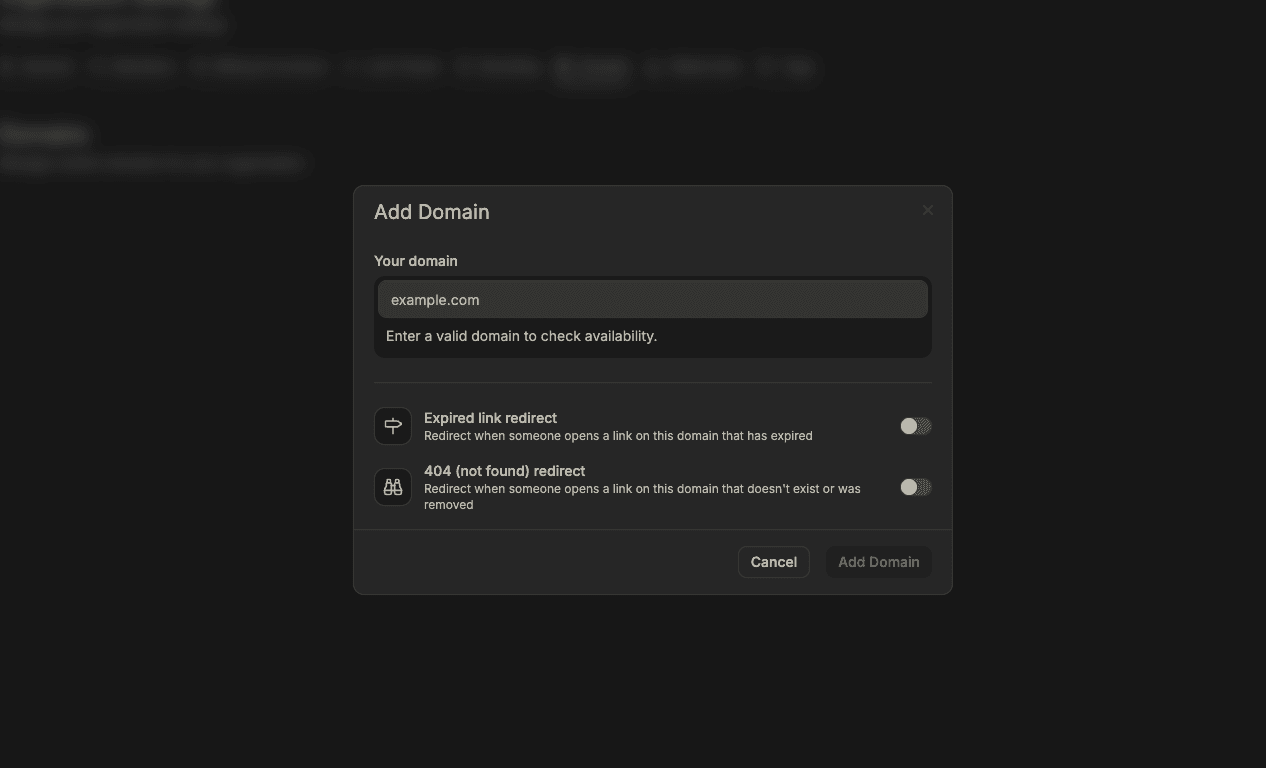
- Enter the domain you want to use (e.g.
docs.yourcompany.comorgo.yourcompany.com) and click Add domain.
The Add domain dialog will open; after you submit, Sendpaper will show you the DNS record you need to add to your domain’s DNS settings.
Step 2: Configure your domain
After adding your domain, you’ll be presented with a DNS record that you’ll need to add to your domain’s DNS settings. Add it at your DNS provider (e.g. Cloudflare, Namecheap, GoDaddy, Dynadot).
Step 2a: Adding an apex domain
If you’re adding an apex domain (e.g. example.com), you’ll need to add an A record with the following values:
- Name:
@(or leave it blank) - Value: The IP address shown in your Sendpaper dashboard (your dashboard will display the exact value)
- TTL:
86400(or the highest value possible)
Step 2b: Adding a subdomain
If you’re adding a subdomain (e.g. go.example.com), you’ll need to add a CNAME record with the following values:
- Name:
go(or whatever subdomain you want to use, e.g.docs,deal,links) - Value: The CNAME target shown in your Sendpaper dashboard (e.g.
cname.sendpaper.io; your dashboard will show the exact value) - TTL:
86400(or the highest value possible)
We do not support using www as the subdomain, since the www subdomain will always redirect to the apex domain instead.
We recommend using the following variations for your subdomains:
go.yourcompany.comdocs.yourcompany.comdeal.yourcompany.comtry.yourcompany.comlinks.yourcompany.coml.yourcompany.com
If you’re using Cloudflare as your DNS provider, you might need to configure some extra steps for it to work properly. Try “DNS only” (grey cloud) for the record if verification fails, or refer to your provider’s documentation. For more help, see Contact us for more info or send us an email.
Step 3 (optional): Verify domain ownership
This step only applies if Sendpaper asks you to verify that you own the domain (for example, when the domain is already in use elsewhere).
If the dashboard shows a TXT record to add, add it to your domain’s DNS with the Name and Value given in the dashboard. Once the record propagates, Sendpaper will verify the domain automatically.
If you are using this domain for another site, adding this TXT record can transfer domain verification away from that site and break it. Please exercise caution. Make sure the domain in the verification value (e.g. go.yourdomain.com) is the one you want to use as your custom domain on Sendpaper, and not your main production site.
How long do I have to wait for my domain to work?
Domain configuration can take anywhere between 1 to 24 hours to complete. If your domain still doesn’t work after 24 hours, please send us an email and we’ll be happy to help you out.
After your domain is verified, set it as the default (or chosen) domain for your organization or data rooms so new document links and data room links use it. Existing links may need to be updated depending on your plan; check the dashboard for your setup.
Custom domain and the rest of your stack
- Access control - Password, link expiry, and email protection work the same with a custom domain. Only the hostname in the URL changes.
- Analytics - Document analytics and data room insights are unchanged. You still see who viewed what and when.
- Data rooms - Virtual data room links can use your custom domain and branding (logo, colors) so the whole experience is on-brand.
- Security - Encryption and access controls apply regardless of domain. The custom domain is for presentation and trust, not a separate security layer.
Contact us for more info
Need help with custom domain setup, DNS, or anything else about document and data room links? Contact us and we’ll get back to you.
Frequently Asked Questions
Related posts
- Product, GuidesData Room Groups: One Place for Permissions and Analytics | SendpaperUse data room groups in Sendpaper to manage permissions and analytics for investors, buyers, and teams. Create a group once, reuse it on links, and see group-level activity without spreadsheets.
- Product, GuidesHow Sendpaper renders files as images in the viewer (and why it matters) | SendpaperLearn how Sendpaper converts uploaded PDFs into page images for a fast, consistent viewer. We cover what formats can be shown, what processing means, and why a loader appears.
- Product, SecuritySecure PDF Document Sharing: Watermarking, Screenshot Protection, View-Only | SendpaperShare PDFs securely with watermarking, screenshot protection, view-only, and one-click agreement. Password and access control in Share Link and Access Control. One sidebar, all options.