Bulk Upload in 2026: Upload Once, Share and Track

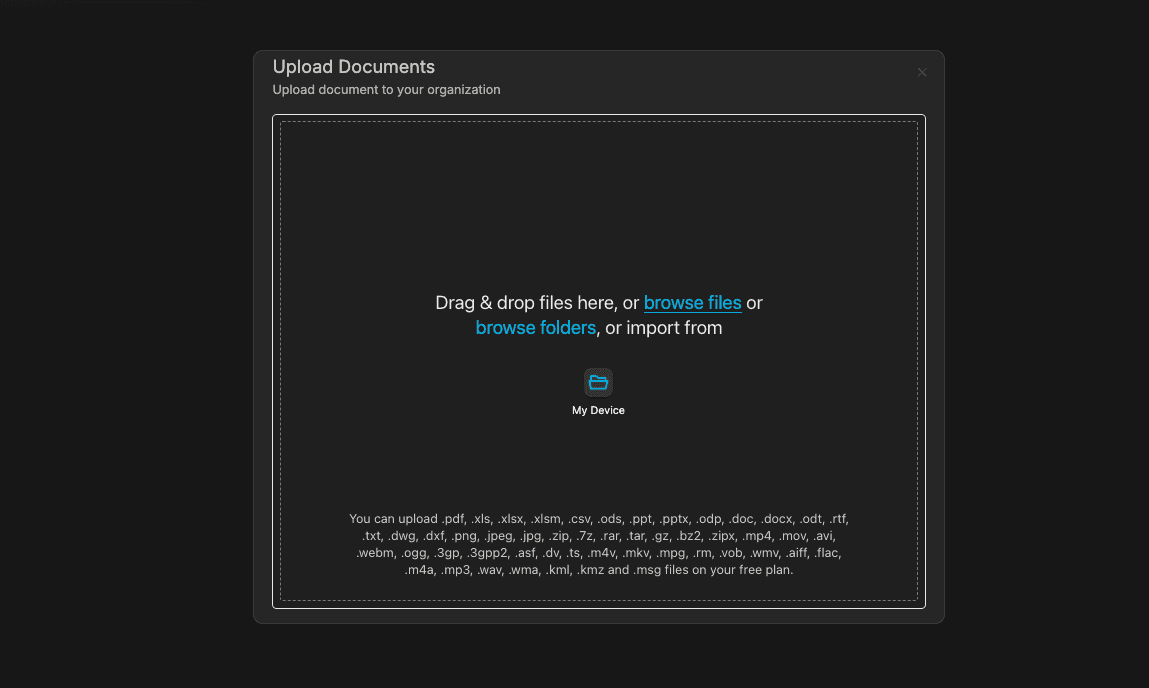
Uploading dozens of files one by one is slow and error-prone. With Sendpaper’s bulk upload, you select multiple files and folders from your device and upload them in a single step. Folder structure is preserved so your Legal, Financials, and Cap Table folders appear in Sendpaper exactly as on your computer. You can bulk upload into All Documents or straight into a data room. This guide covers how bulk upload works and how to use it in 2026.
Bulk upload in Sendpaper: select many files and folders in one step instead of uploading documents one by one.
What Bulk Upload Does
- Many files at once - Add dozens or hundreds of files in one upload instead of uploading them one by one. Select multiple files, or select whole folders; everything you choose is uploaded together.
- Folder structure preserved - When you upload a folder (or a tree of folders), we recreate the same structure in Sendpaper. Nested folders like
Due Diligence / Legal / Contractsbecome the same hierarchy in your workspace or data room. No need to recreate folders manually. - Upload to All Documents or a data room - Use bulk upload in All Documents to build your library, or open a data room and upload directly into the room (at the root or into a specific folder). Same flow: select files and folders, upload once.
- One audit entry - A single bulk upload is recorded as one action in the data room audit log (when uploading to a room), so you can see when a batch of documents was added without cluttering the log.
Bulk upload supports the same file types as single-file uploads: PDFs, Office documents, spreadsheets, images, video, and more. Each file is processed and stored like a normal upload; the only difference is you add many at once and keep your folder layout.
After bulk upload, documents are converted into page images for a fast, consistent viewer experience. The same pipeline powers single-file uploads.
Documents by plan
How many documents you can store (including via bulk upload) depends on your plan. The table below is a guide; see Pricing for the latest.
| Plan | Documents |
|---|---|
| Free | 49 |
| Personal Pro | 300 |
| Advance | 1,000 |
| Dataroom Pro | Unlimited |
| Dataroom Advance | Unlimited |
| Enterprise | Unlimited |
Bulk upload is available on plans that support multiple documents and folders; upgrade to Advance or a Dataroom plan for higher limits or unlimited documents.
How We Handle Bulk Upload: Uppy (Open Source)
Under the hood, Sendpaper uses Uppy to power the bulk upload experience. Uppy is an open source JavaScript file upload library that handles multiple files, folder selection, drag-and-drop, and progress tracking in one place. We chose it because it’s built for exactly this use case: many files at once, with a clear UI and reliable upload flow.
- Open source - Uppy is MIT-licensed and maintained in the open. You get a well-tested, widely used upload stack instead of a black box. Sendpaper is open source too, so you can see how we integrate Uppy with our backend and folder logic.
- Multi-file and folder support - Uppy lets users select multiple files or entire folders from their device. We read the relative paths (e.g.
Legal/Contract.pdf) and use them to recreate the same folder structure in your workspace or data room. No manual rebuilding. - One flow for All Documents and data rooms - The same Uppy-based upload dialog is used whether you’re uploading to All Documents or into a data room. We create the folders first (via our backend), then upload each file into the correct folder. When you drop a whole folder tree, we create the hierarchy and assign each file to the right place.
- Progress and reliability - You see progress per file and for the whole batch. Large batches are handled in one session so you don’t have to re-select files if something fails mid-way.
So when you bulk upload, you’re using the same open source building block (Uppy) that powers many modern upload experiences, wired into Sendpaper’s folder and data room logic so your structure is preserved end to end.
How to Bulk Upload
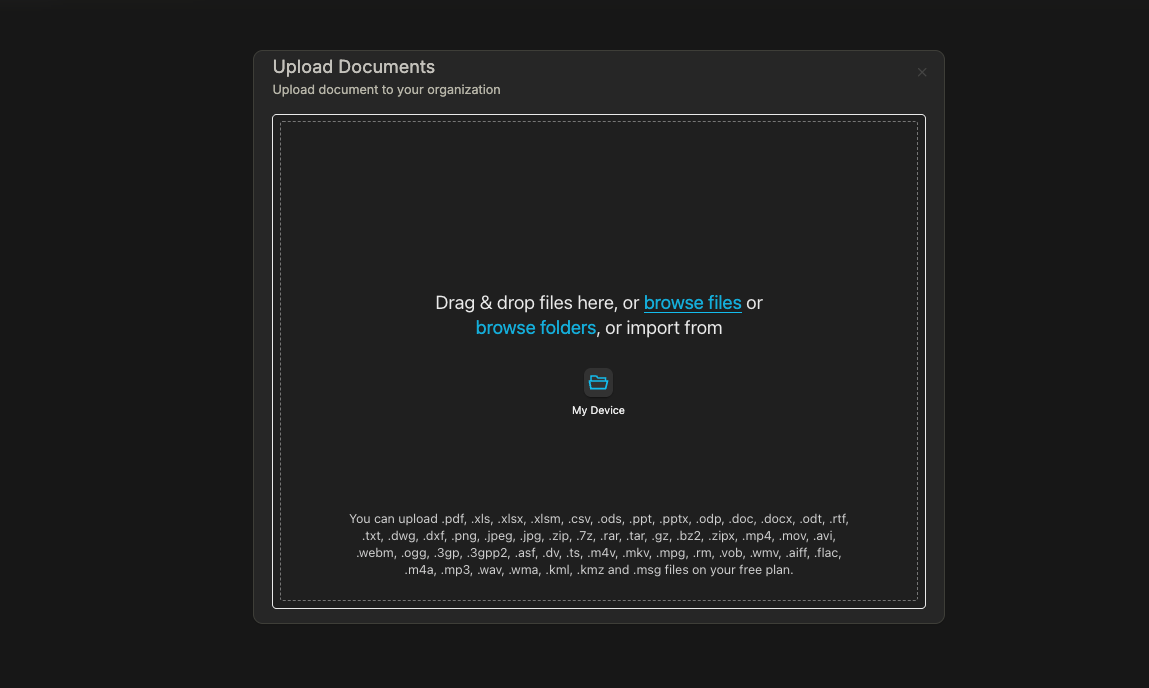
Bulk upload from the Sendpaper upload modal: pick multiple files or whole folders, then start one upload that preserves your folder structure.
| Step | Action |
|---|---|
| 1 | Open the place where you want the files: All Documents (your workspace) or a data room. If you want them inside a folder, open that folder first. |
| 2 | Start upload (e.g. Upload or drag-and-drop). The upload dialog accepts multiple files and folders. |
| 3 | Select multiple files from your computer, or select one or more folders. When you select a folder, all files and subfolders inside it are included. |
| 4 | Confirm and start the upload. Folders are created first (so the structure exists), then files are uploaded into the correct folders. |
| 5 | When the upload finishes, your documents and folder structure appear in the tree. In a data room, the same structure is visible to viewers when you share the room link. |
You can run bulk upload as often as you need. Add more files later by uploading again to the same folder or to a new one; there’s no need to re-upload everything.
Where You Can Bulk Upload
- All Documents - Build your document library with a full folder structure. Later you can create a data room from a folder or use Add to data room to move folders and files into a room.
- Data room root - Open the data room and upload at the top level. We create the folders and put each file in the right place. When you upload to the room root with a folder structure, that structure can also be mirrored to All Documents so you have one consistent layout.
- Inside a data room folder - Open a folder inside the room and upload there. New files and subfolders are added under that folder. The rest of the room is unchanged.
Same bulk upload behavior everywhere: select many files and/or folders once, and we preserve the structure.
Use Cases
- Due diligence - You have a folder on your machine with Legal, Financials, HR, and IP. Bulk upload that folder (or the whole tree) into a new or existing data room. Structure is intact; you then create a link and share with buyers or advisors. See multi-file sharing for sharing one link to the room.
- Fundraising - Put deck, financials, cap table, and one-pagers in a folder. Bulk upload into a data room. One upload, one place; then share the room link with investors.
- Board or committee packs - Organize materials by meeting or topic in folders. Bulk upload into the room you use for board materials. Add more packs later with another bulk upload.
- Any large set of documents - Whenever you have many files already organized in folders, bulk upload saves time and keeps that organization in Sendpaper.
After Bulk Upload
- Share via one link - Use a data room and create a link for the room. Recipients open one URL and see all the folders and files you’ve allowed. Add password, link expiry, or granular permissions as needed.
- Create a data room from a folder - If you bulk uploaded into All Documents and now have a folder with everything you need, use Create data room from folder. That folder and its contents become a new room; create a link and share.
- Add to an existing room - From All Documents, select the documents or folders you uploaded and use Add to data room to add them to an existing room. Folder structure is kept.
Bulk upload is the fastest way to get a large set of files and folders into Sendpaper; from there you control sharing and access with data rooms and link permissions.
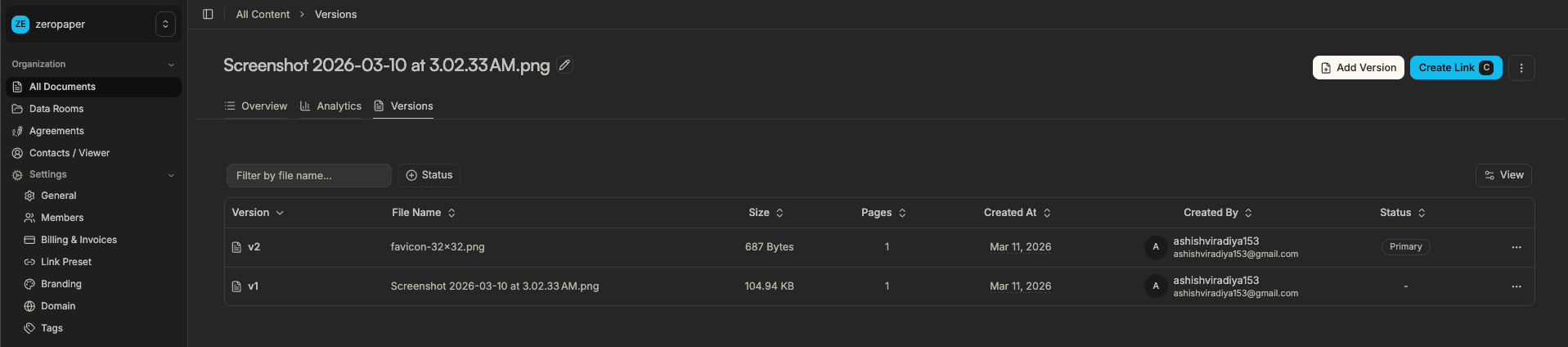
After bulk upload, documents appear in your workspace or data room with one consistent folder structure, ready to share and track.
Open source, transparency, and licensing
Sendpaper is open source: you can inspect the code and self-host for full control. We also offer licensing and hosted options for teams that need enterprise support or prefer not to run the stack themselves. For questions about licensing, open source hosting, or self-hosting, contact us and we'll help you choose the right option.
Frequently Asked Questions
Related posts
- Product, GuidesData Room Groups: One Place for Permissions and Analytics | SendpaperUse data room groups in Sendpaper to manage permissions and analytics for investors, buyers, and teams. Create a group once, reuse it on links, and see group-level activity without spreadsheets.
- Product, GuidesHow Sendpaper renders files as images in the viewer (and why it matters) | SendpaperLearn how Sendpaper converts uploaded PDFs into page images for a fast, consistent viewer. We cover what formats can be shown, what processing means, and why a loader appears.
- Product, SecuritySecure PDF Document Sharing: Watermarking, Screenshot Protection, View-Only | SendpaperShare PDFs securely with watermarking, screenshot protection, view-only, and one-click agreement. Password and access control in Share Link and Access Control. One sidebar, all options.