Media Player Settings for Video and Audio Links | Sendpaper

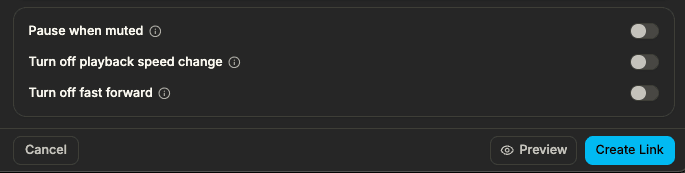
When you share a video or audio link in 2026, you can control how it’s played in the browser. Sendpaper’s Media Player Settings apply per link: pause when muted, turn off playback speed change, and turn off fast forward. They work for both video and audio so you keep playback intentional and consistent. This guide explains each setting and how to use them with your video analytics and audio analytics links.
What Are Media Player Settings?
Media Player Settings are three link-level options you turn on when creating or editing a link that points to a video or audio file. They change how the secure viewer behaves so viewers can’t skip ahead, change speed, or keep playing with sound off. All three are optional; use them when you need stricter control (e.g. training, compliance, or pitch content).
The Three Settings
1. Pause when muted
When this is on, playback automatically pauses as soon as the viewer mutes the video or audio. So content is only heard when sound is on. Use it when you care that the message is actually listened to, not just left running in the background.
2. Turn off playback speed change
When this is on, viewers cannot change playback speed (e.g. 1.5x, 2x). The video or audio plays at normal speed only. Use it when you want everyone to experience the content at the intended pace (e.g. training, briefings, or timed presentations).
3. Turn off fast forward
When this is on, viewers cannot fast-forward (via controls or keyboard shortcuts). They have to watch or listen in order. Use it when you need to ensure full playback for compliance, certifications, or engagement analytics.
You can enable any combination: for example, only “turn off fast forward,” or all three together for maximum control.
Media player settings by plan
Media Player Settings are available on Advance and above (Dataroom Pro, Dataroom Advance, Enterprise). The table below is a guide; see Pricing for the latest.
| Plan | Media player settings |
|---|---|
| Free | No |
| Personal Pro | No |
| Advance | Yes |
| Dataroom Pro | Yes |
| Dataroom Advance | Yes |
| Enterprise | Yes |
Check your plan on Pricing for link-level media controls; video analytics and audio analytics pages describe the full feature set.
Where to Set Them
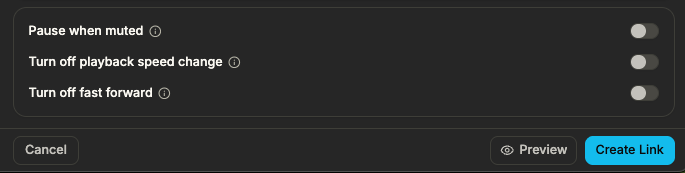
When you create or edit a document link or data room link that serves video or audio, open the link settings in the dashboard. Under Media Player Settings you’ll see the three toggles:
- Pause when muted
- Turn off playback speed change
- Turn off fast forward
They apply only to links that point to video or audio (or to a data room that contains them). The same link can still have password, link expiry, email protection, and other access controls; Media Player Settings add playback behavior on top.
How Media Player Settings work
Follow these steps to turn on Media Player Settings for your video or audio links. Each step links to a guide or product page you can open for more detail.
Set access control on your link (password, expiry, allow list, email protection)Create a video or audio link and open Media Player Settings in the link formUse Media Player Settings in a data room for video or audio inside the room
How They Work with Video and Audio Analytics
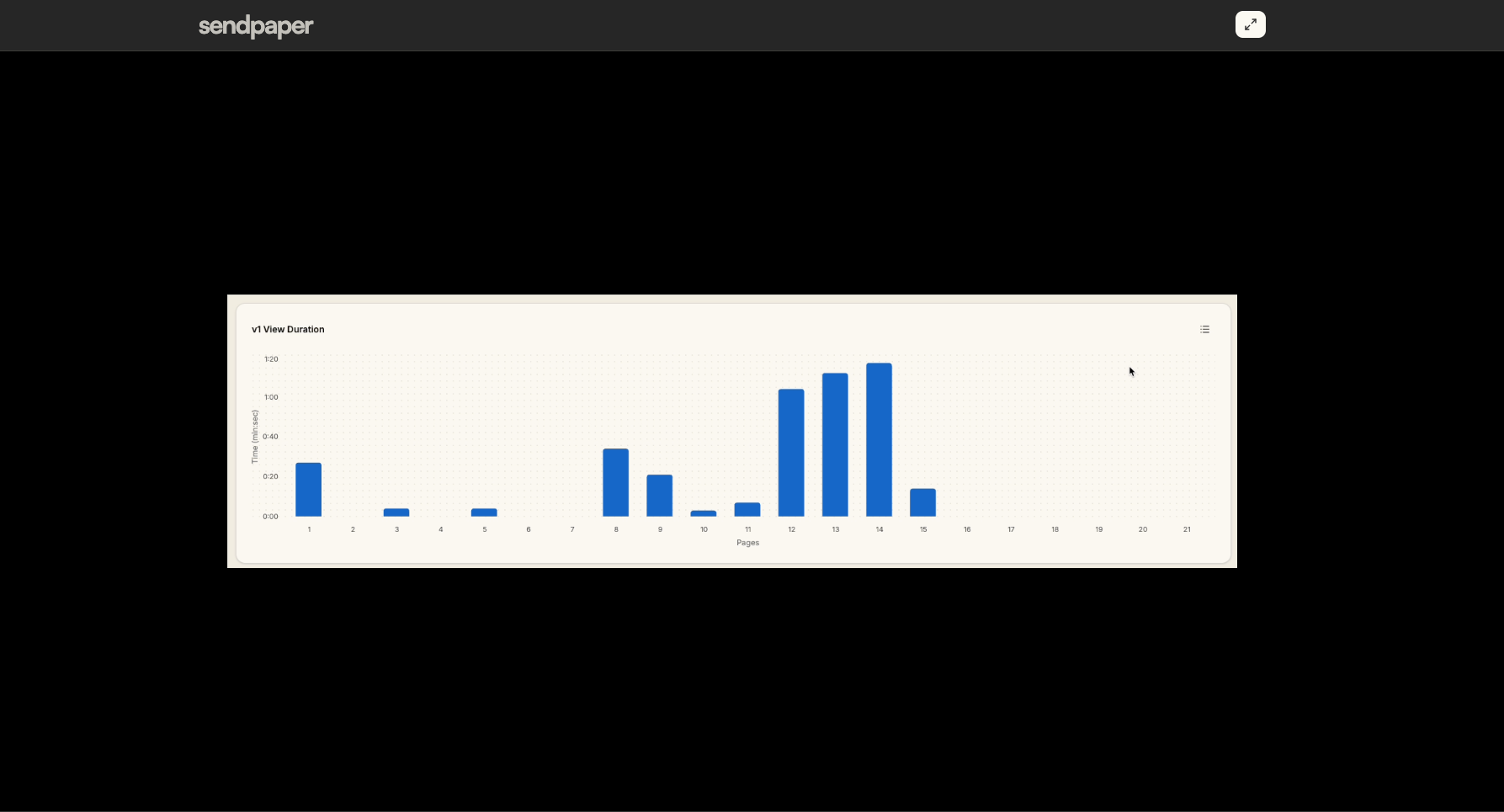
Video analytics and audio analytics track watch time, completion rate, and drop-off. When you turn on “turn off fast forward” or “pause when muted,” playback is more intentional, so your completion and drop-off data better reflect real consumption. You still get the same dashboard metrics: who watched or listened, when, how long, and where they stopped. Media Player Settings don’t change how we track; they change how the viewer can interact with the player.
Use Cases
- Training and compliance - Require full playback at normal speed. Turn off fast forward and playback speed change; optionally pause when muted so sound must be on. Video analytics and audio analytics show completion and drop-off.
- Pitch and sales content - Keep videos and audio at intended pace. Turn off fast forward so viewers can’t skip; use video analytics to see who finished and who dropped off.
- Data room video/audio - Apply the same settings to video or audio inside a data room. Link-level access control (password, link expiry, allow list) plus Media Player Settings give you one place to control who opens the link and how they play the content.
Frequently Asked Questions
Related posts
- Product, GuidesData Room Groups: One Place for Permissions and Analytics | SendpaperUse data room groups in Sendpaper to manage permissions and analytics for investors, buyers, and teams. Create a group once, reuse it on links, and see group-level activity without spreadsheets.
- Product, GuidesHow Sendpaper renders files as images in the viewer (and why it matters) | SendpaperLearn how Sendpaper converts uploaded PDFs into page images for a fast, consistent viewer. We cover what formats can be shown, what processing means, and why a loader appears.
- Product, SecuritySecure PDF Document Sharing: Watermarking, Screenshot Protection, View-Only | SendpaperShare PDFs securely with watermarking, screenshot protection, view-only, and one-click agreement. Password and access control in Share Link and Access Control. One sidebar, all options.