Data Room Q&A (2026): Questions, Answers, and FAQs in One Place | Sendpaper

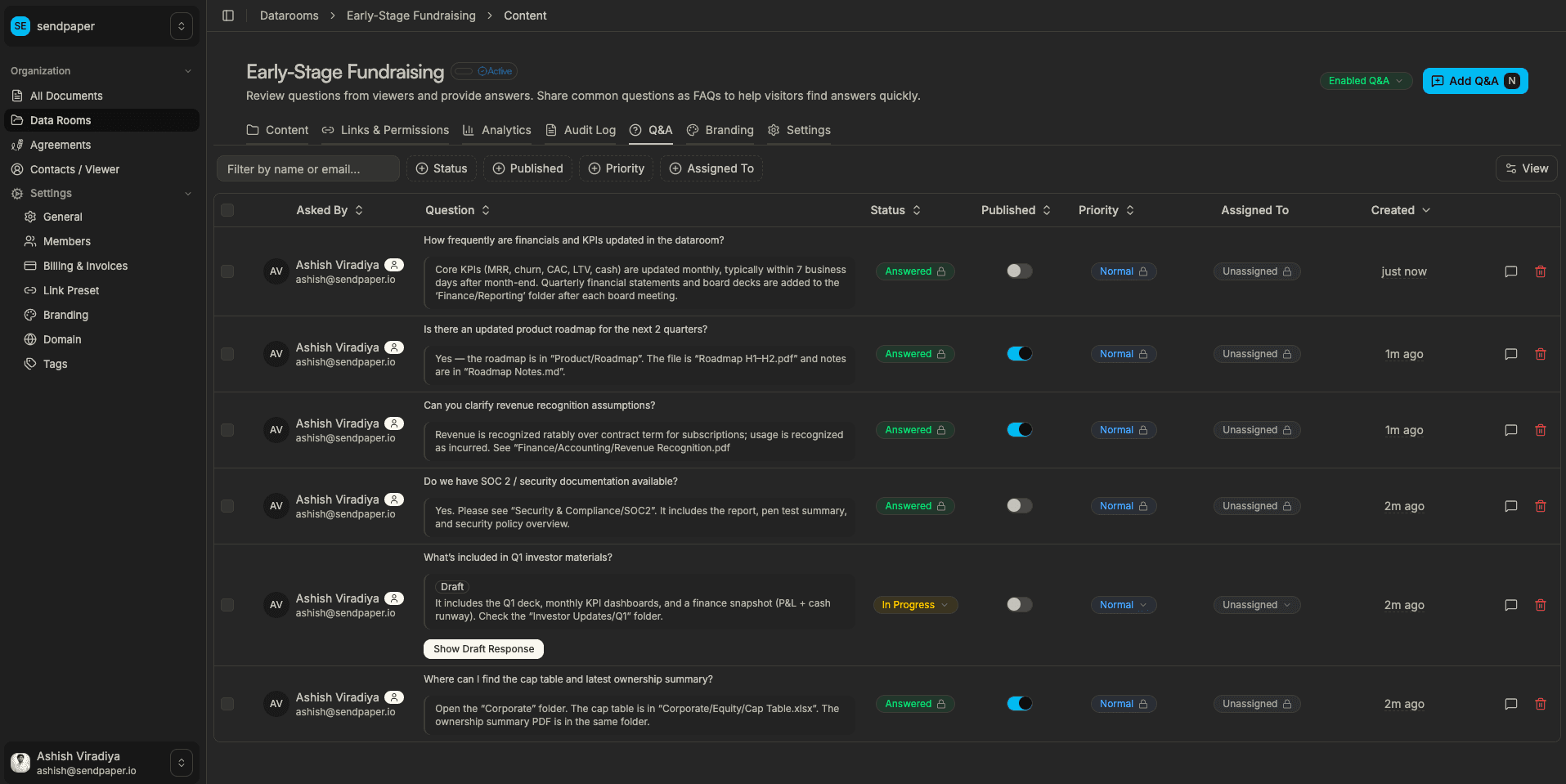
Learn how to turn on Q&A in your Sendpaper data room, how viewers ask questions and see FAQs, and how your team answers and publishes so everyone gets the same information. No email threads, no spreadsheets.
Sendpaper’s data room Q&A is built into the virtual data room: viewers ask questions from the room, your team answers in one place, and you choose which Q&As to publish as FAQs so everyone sees the same answers. Questions can be tied to a document or folder, given a status (Open, In progress, Answered, Closed) and priority, and assigned to team members. Answers stay as drafts until you publish; only published answers are visible to viewers. This guide explains what you need, how Q&A works, and how to use it in 2026.
What you need
- A Sendpaper account - If you don’t have one, sign up for free.
- A data room on a plan that includes Q&A - Q&A is available on Dataroom Pro, Dataroom Advance, and Enterprise. See Q&A by plan below.
- Viewers with access - Share the data room link so viewers can open the room and use “Ask a Question” or “View Q&A”.
Use granular permissions on folders and files so viewers only see what they’re allowed to. Q&A works on top of that: they ask about what they can access, and you control which answers become FAQs.
Q&A by plan
On Sendpaper, data room Q&A is available only on certain plans. The table below is a guide; see Pricing for the latest.
| Plan | Q&A in data room |
|---|---|
| Free | No |
| Personal Pro | No |
| Advance | No |
| Dataroom Pro | Yes |
| Dataroom Advance | Yes |
| Enterprise | Yes |
If you’re on Free, Personal Pro, or Advance, upgrade to Dataroom Pro or above to enable Q&A for your data room.
Why use data room Q&A?
- One place for questions - All questions land in your data room Q&A tab. Filter by status (Open, In progress, Answered, Closed), assign to team members, and track what’s done. No scattered emails or sheets.
- Draft before publish - Write answers as drafts; only when you publish do viewers see them. Use drafts for internal review or sign-off. Answer status is either Draft or Published.
- FAQs from your answers - Publish a question and its answer so it appears under “Frequently Asked Questions” for all viewers. The first asker gets an email; everyone else sees the same FAQ in the room.
- Email to the asker - When you publish an answer to a viewer’s question, they get an email with the answer and a link back to the data room.
- Full audit trail - Question and answer created, updated, and published are recorded in the data room audit log, so you have a clear record for due diligence and compliance.
Q&A works alongside granular permissions: viewers only see documents and folders they’re allowed to; they ask about what they can access, and you decide which Q&As become FAQs.
What the Q&A tab shows
The Q&A tab in your data room is a single list of all questions for that room. Each question has:
- Question text - What the viewer or your team asked (up to 2,000 characters).
- Context - Optional link to a document or folder the question is about.
- Status - Open, In progress, Answered, or Closed. Use these to filter and track progress.
- Priority - Low, Normal, High, or Urgent (optional).
- Assignee - Team member responsible for answering.
- Answer(s) - One or more answers. Each answer is either Draft (internal only) or Published (visible to viewers when you publish the question as FAQ).
Only questions that are published and have at least one published answer appear in “Frequently Asked Questions” for viewers. Draft answers are never shown to viewers.
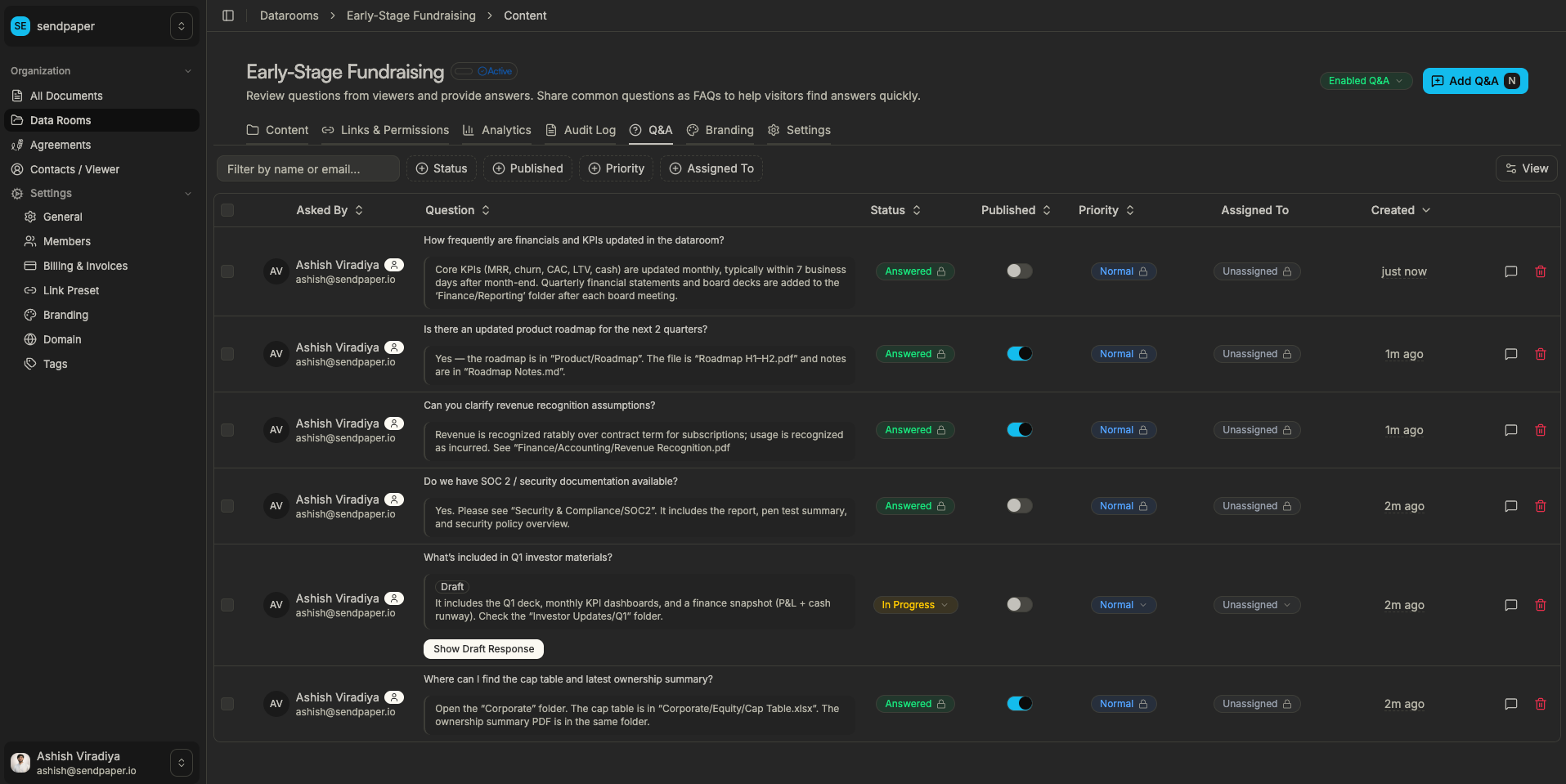
Data room Q&A tab: all questions in one place, with status, assignee, and draft or published answers.
Step 1: Enable Q&A and add questions or answers
- Open your data room from the dashboard.
- In the data room settings, turn Q&A on for that room. The room must be on a plan that supports Q&A (Dataroom Pro or above).
- Open the Q&A tab. Here you can add a new question (and optionally an answer) from your side, or wait for viewers to submit questions via the room link.
- To add a question and answer yourself: use Add question (or equivalent). Enter the question text; you can link it to a document or folder. Add the answer and choose Save as draft or Save and publish. If you publish, you can also mark the question as published so it appears in FAQs for viewers.
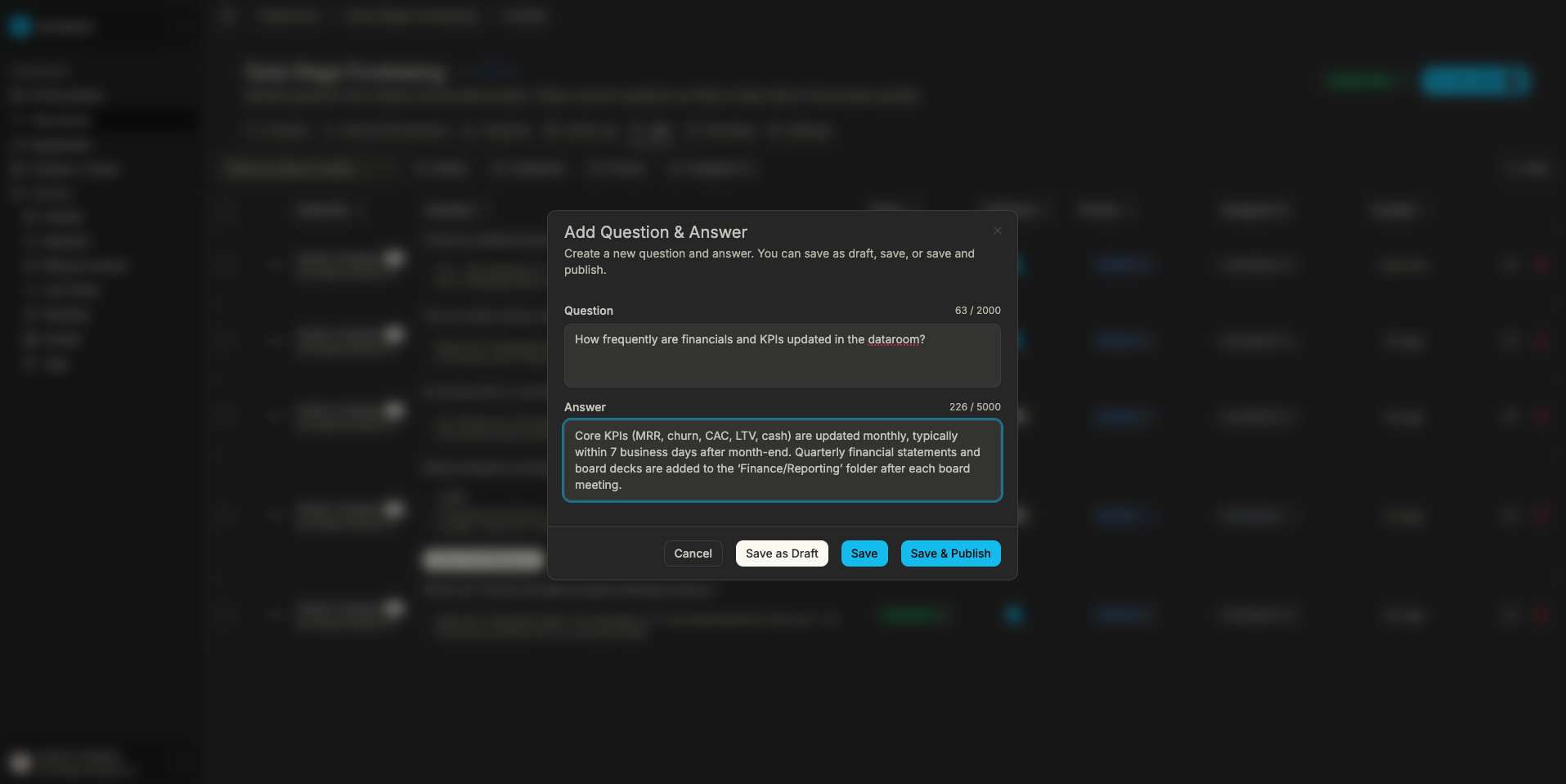
Add a question and answer from the data room Q&A tab. Save as draft or publish so viewers see it in FAQs.
Step 2: Viewers ask questions and see FAQs
Once Q&A is enabled and you’ve shared the data room link, viewers can:
- Open the data room via the link. In the room header they see View Q&A or Ask a Question.
- In the Q&A view, they first see Frequently Asked Questions (all published Q&As). They can read these without asking again.
- They use Ask a Question to submit a new question (up to 2,000 characters). They get a confirmation that the question was sent.
- When you publish an answer to their question, they receive an email with the answer and a link back to the data room. They can also return to the room and see published Q&As in the FAQ section.
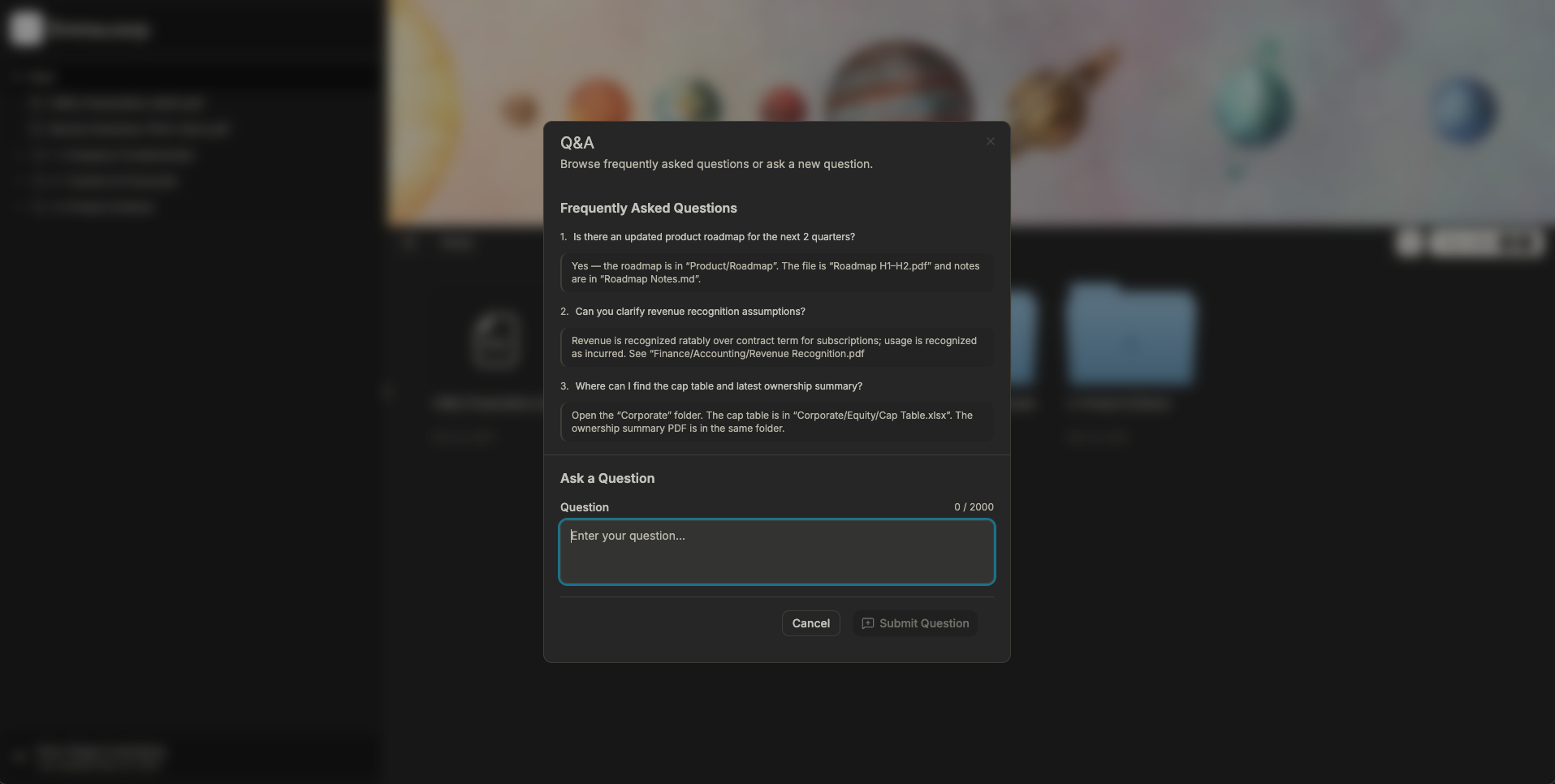
Viewer side: read published FAQs, then ask a new question. Only published answers are visible here.
Step 3: Publish answers and notify the asker
When you’re ready for viewers to see an answer:
- In the Q&A tab, open the question and the answer (or add an answer if it’s still missing).
- Change the answer from Draft to Published. Only published answers are visible to viewers.
- Optionally publish the question so the Q&A appears under “Frequently Asked Questions” for all viewers. The viewer who asked gets an email with the answer and a link back to the room; other viewers see the same Q&A in the FAQ list.
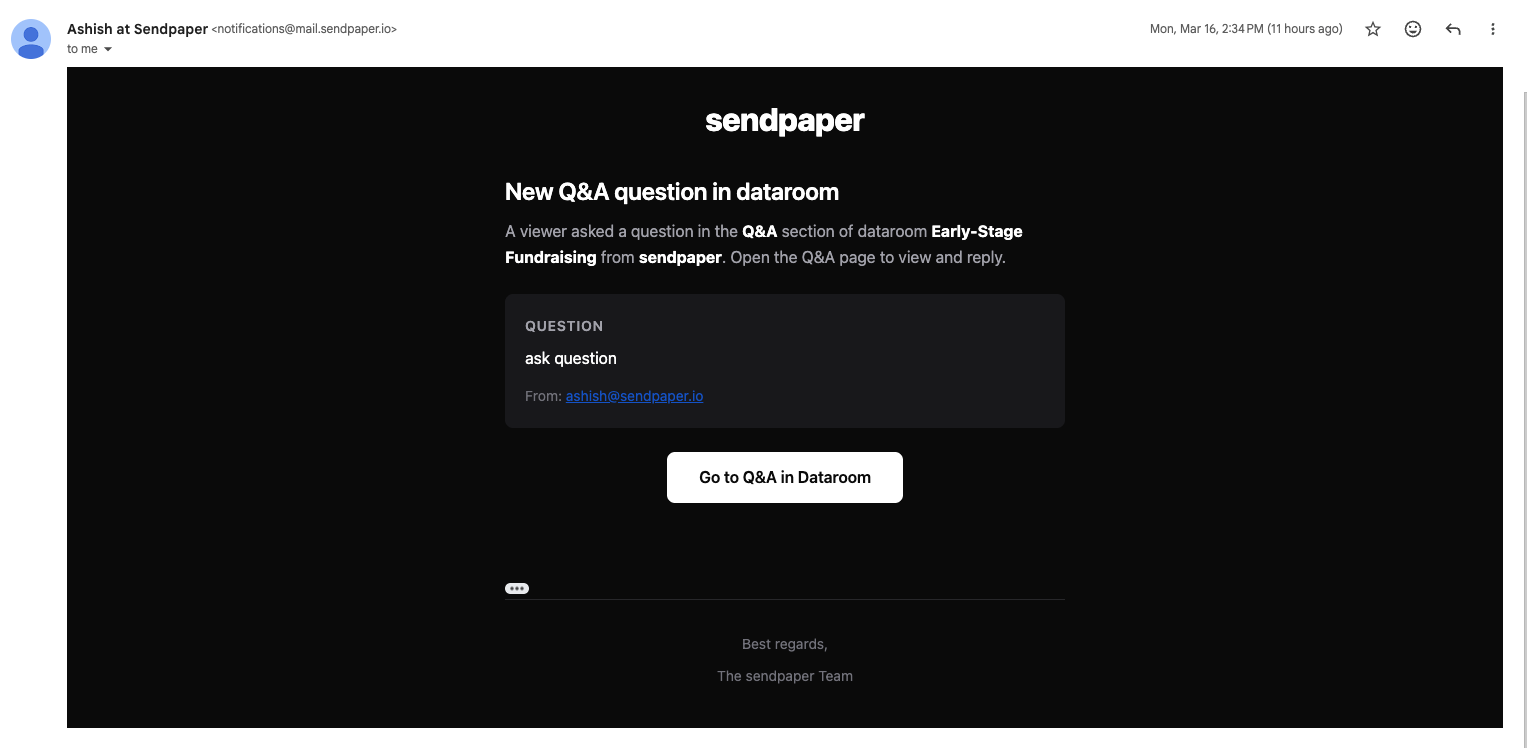
When you publish an answer to a viewer’s question, they receive an email with the answer and a link back to the data room.
How Q&A fits with the rest of the data room
- Permissions - Granular file and folder permissions define who can see which documents. Q&A does not override that; viewers only ask about what they can access. You control which answers become FAQs.
- Audit - Every Q&A action (question created, updated, deleted; answer created, updated, published) is logged in the data room audit log. Use it for compliance and process review.
- Access control - The data room link and access controls (password, link expiry, allow/block list) apply to the whole room. Q&A is an optional layer so identified viewers can ask questions and read published FAQs.
- Analytics - Data room analytics (most visited, recent visits) are separate from Q&A. The audit log is the place for who asked what and when you answered.
How to get the best value from Q&A
Use these practices to make Q&A work harder for your team and viewers:
- Publish FAQs early - As soon as a question comes up more than once, add a clear answer and publish it as an FAQ. New viewers see it before asking, so you answer once and everyone benefits. Great for due diligence and fundraising where the same topics recur.
- Use status and assignee - Keep questions in Open, In progress, Answered, or Closed and assign owners (e.g. CFO for numbers, legal for terms). Filter by assignee and status so nothing slips and your team knows who owns what.
- Draft first, then publish - Write answers as drafts, get internal sign-off if needed, then publish. Only published answers are visible to viewers, so you keep control and avoid half-finished replies going out.
- Use the audit log - The data room audit log records every Q&A action. Use it to prove who asked what and when you answered, for due diligence, fundraising updates, or auditor questions. That record is part of the value of Q&A.
- Set priority for hot topics - Mark time-sensitive or deal-critical questions as High or Urgent so the right person sees them first. Combine with assignee so the right expert handles them.
- Keep FAQs current - When facts or terms change, update the answer and keep the Q&A published so the FAQ stays accurate. Viewers trust the room more when FAQs match the latest information.
When you treat Q&A as the single place for questions and answers and publish the best ones as FAQs, you cut repeat questions, speed up due diligence and fundraising, and keep a clear trail for compliance.
Use cases
- M&A and due diligence - Buyers and advisors ask about specific documents or folders. Centralize answers in the Q&A tab, then publish the ones that apply to all bidders so everyone sees the same FAQ. Use the audit log to show who asked what and when you answered. See M&A and due diligence.
- Fundraising - Investors ask about metrics, terms, or structure. Answer once and publish as FAQ so the next investor finds it without asking again. The first asker gets an email; later visitors see the same Q&A in the room. See fundraising and investor relations.
- Board and committee materials - Recipients ask for clarification on board packs or committee docs. Answer and publish recurring clarifications as FAQs so future readers see them without asking again. All Q&A activity is in the audit log for governance. See board meetings and governance.
Frequently Asked Questions
Related posts
- Product, GuidesData Room Groups: One Place for Permissions and Analytics | SendpaperUse data room groups in Sendpaper to manage permissions and analytics for investors, buyers, and teams. Create a group once, reuse it on links, and see group-level activity without spreadsheets.
- Product, GuidesHow Sendpaper renders files as images in the viewer (and why it matters) | SendpaperLearn how Sendpaper converts uploaded PDFs into page images for a fast, consistent viewer. We cover what formats can be shown, what processing means, and why a loader appears.
- Product, SecuritySecure PDF Document Sharing: Watermarking, Screenshot Protection, View-Only | SendpaperShare PDFs securely with watermarking, screenshot protection, view-only, and one-click agreement. Password and access control in Share Link and Access Control. One sidebar, all options.