Teilen und verfolgen Sie mehrere Dateien über einen Link (2026)

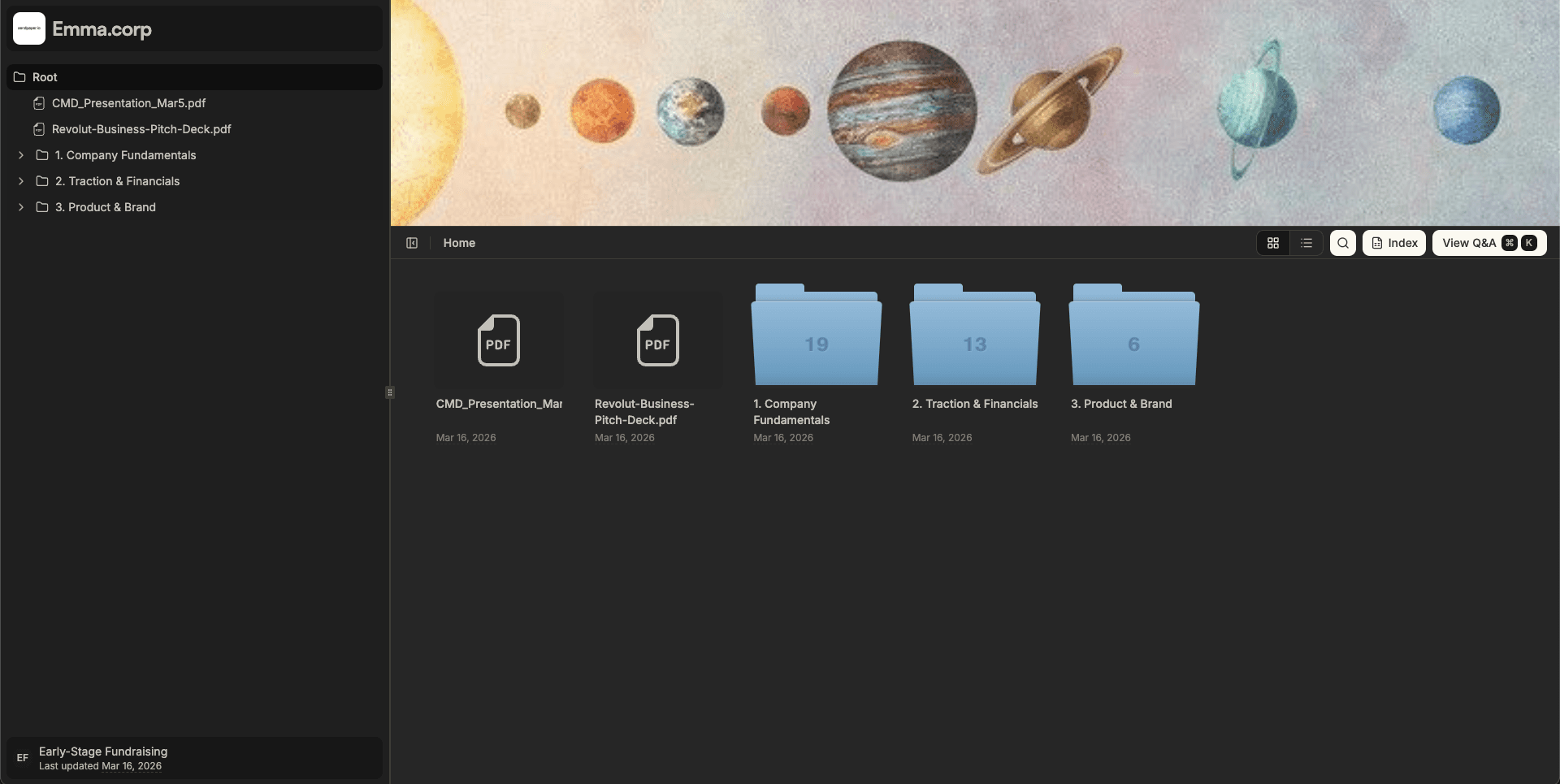
Sharing many files usually means many links, or a zip, or a messy thread. In 2026 you can do it the other way: organize your documents in folders, put them in a data room, and share one link. Recipients open that link and see everything you’ve allowed them to see, in a clear folder structure, with view tracking and access control. This guide walks through how to share multiple files in one link using Sendpaper: from folders and bulk upload to creating a data room and sharing a single link.
What You Get
- One link, many files - Create a link for a data room. Everyone with that link sees all the documents and folders you’ve added to the room (subject to granular permissions if you use them).
- Folders - Organize documents in folders in All Documents, or inside a data room. Nested folders are supported so you can mirror your deal structure (e.g. Legal, Financials, Cap Table).
- Bulk upload - Upload multiple files and folders at once. Select a whole folder from your computer; we preserve the folder structure so you don’t rebuild it by hand.
- Create data room from folder - Already have a folder in All Documents with everything you need? Turn it into a data room in one step. The folder and all its contents (subfolders and documents) become the room. Name the room, then create a link and share.
- Add to data room - From All Documents you can select specific documents and/or folders and add them to an existing data room or to a new one. Folder structure is kept. Then create or reuse a link for that room.
- Folders inside the room - Inside a data room you can create new folders, upload files into them, and move documents between folders. One link still opens the whole room.
No matter which path you use, the outcome is the same: one link that opens a set of files and folders, with optional password, link expiry, and permissions per folder and file.
Data rooms and documents by plan
Data rooms and document limits depend on your plan. The table below is a guide; see Pricing for the latest.
| Plan | Data rooms | Documents |
|---|---|---|
| Free | 0 | 49 |
| Personal Pro | 0 | 300 |
| Advance | Unlimited | 1,000 |
| Dataroom Pro | Unlimited | Unlimited |
| Dataroom Advance | Unlimited | Unlimited |
| Enterprise | Unlimited | Unlimited |
To share multiple files in one link via a data room, you need Advance or a Dataroom plan; see Pricing for details.
Two Ways to Get to One Link
Path 1: Start with Folders and Documents, Then Create the Room
Use this when you already have (or want to build) a folder structure in All Documents, then expose it as a data room.
| Step | Action |
|---|---|
| 1 | In your workspace, create folders in All Documents and add documents, or bulk upload a folder from your computer so that folder structure is recreated. |
| 2 | Option A - Create data room from folder: Select the folder you want to share. Use Create data room from folder. Name the new data room (e.g. "Series A Data Room"). The folder and all its contents (subfolders and files) are copied into the new room. |
| 3 | Option B - Add to data room: Select the documents and/or folders you want in the room. Use Add to data room. Choose an existing data room or create a new one. Selected folders keep their structure inside the room. |
| 4 | Open the data room. Create a link for the room, set a name, and optionally add password, link expiry, or allow/block list. |
| 5 | Share the link. Recipients open it once and see all files and folders you’ve made visible to them. |
Path 2: Create the Data Room First, Then Add Content
Use this when you prefer to start from an empty room and then add or upload everything there.
| Step | Action |
|---|---|
| 1 | Create a new data room and name it (e.g. "Due Diligence Q1 2026"). |
| 2 | Open the room. Upload multiple files and folders directly into the room. When you upload a folder to the room root, the folder structure is preserved. You can also create folders inside the room and upload or move documents into them. |
| 3 | Optionally add more content later: from All Documents, select more documents or folders and use Add to data room to add them to this room. |
| 4 | Create a link for the data room. Configure access (password, link expiry, allow/block list, etc.) and share the link. |
In both paths, one link gives access to the whole set of files and folders in that room. You can create multiple links for the same room (e.g. one per investor or buyer) and control permissions per link or per folder/file so different people see different content.
Bild- und Video-Bibliothek
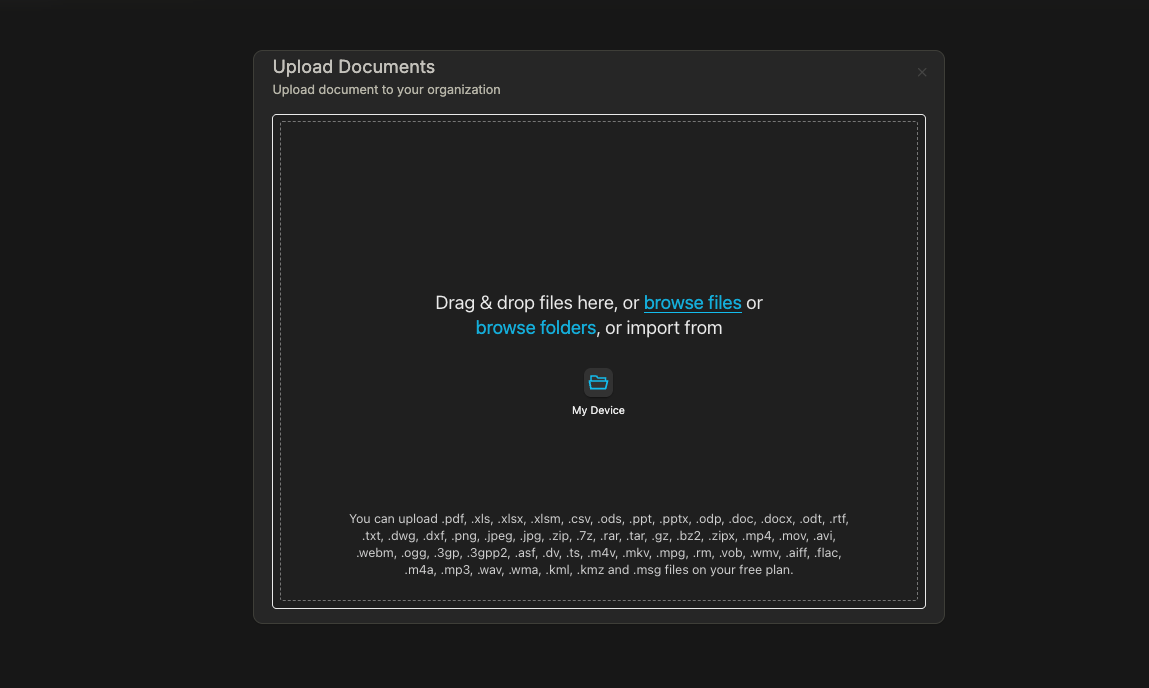
Bulk-Upload in Sendpaper: Wählen Sie viele Dateien und Ordner in einem Schritt aus.
Wählen Sie mehrere Dateien oder Ordner in der Upload-Modal aus, und laden Sie dann einmal hoch. Die Struktur bleibt erhalten.
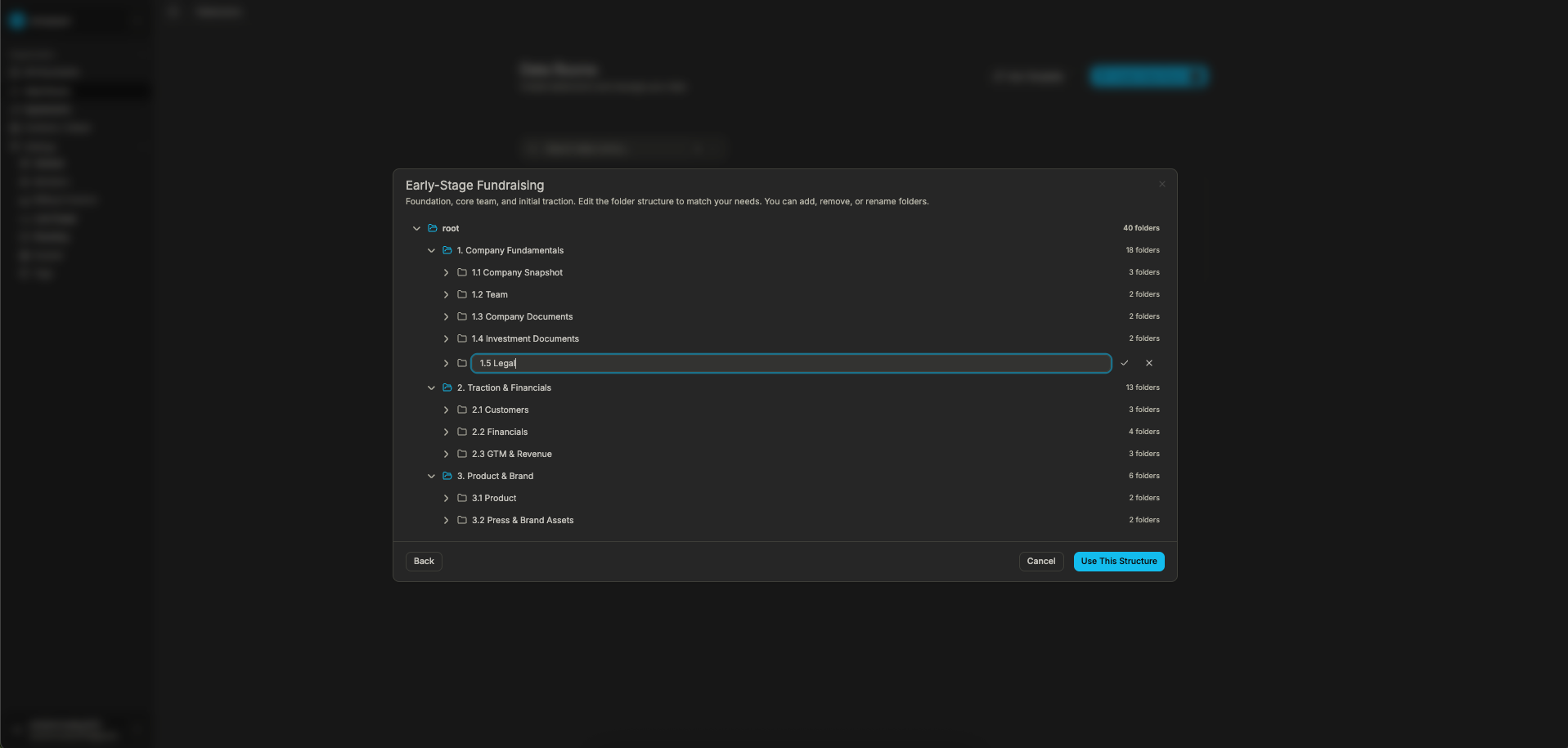
Starten Sie mit einer Ordnerstruktur und erstellen Sie Ihren Data Room aus dem Ordner oder laden Sie direkt hoch.
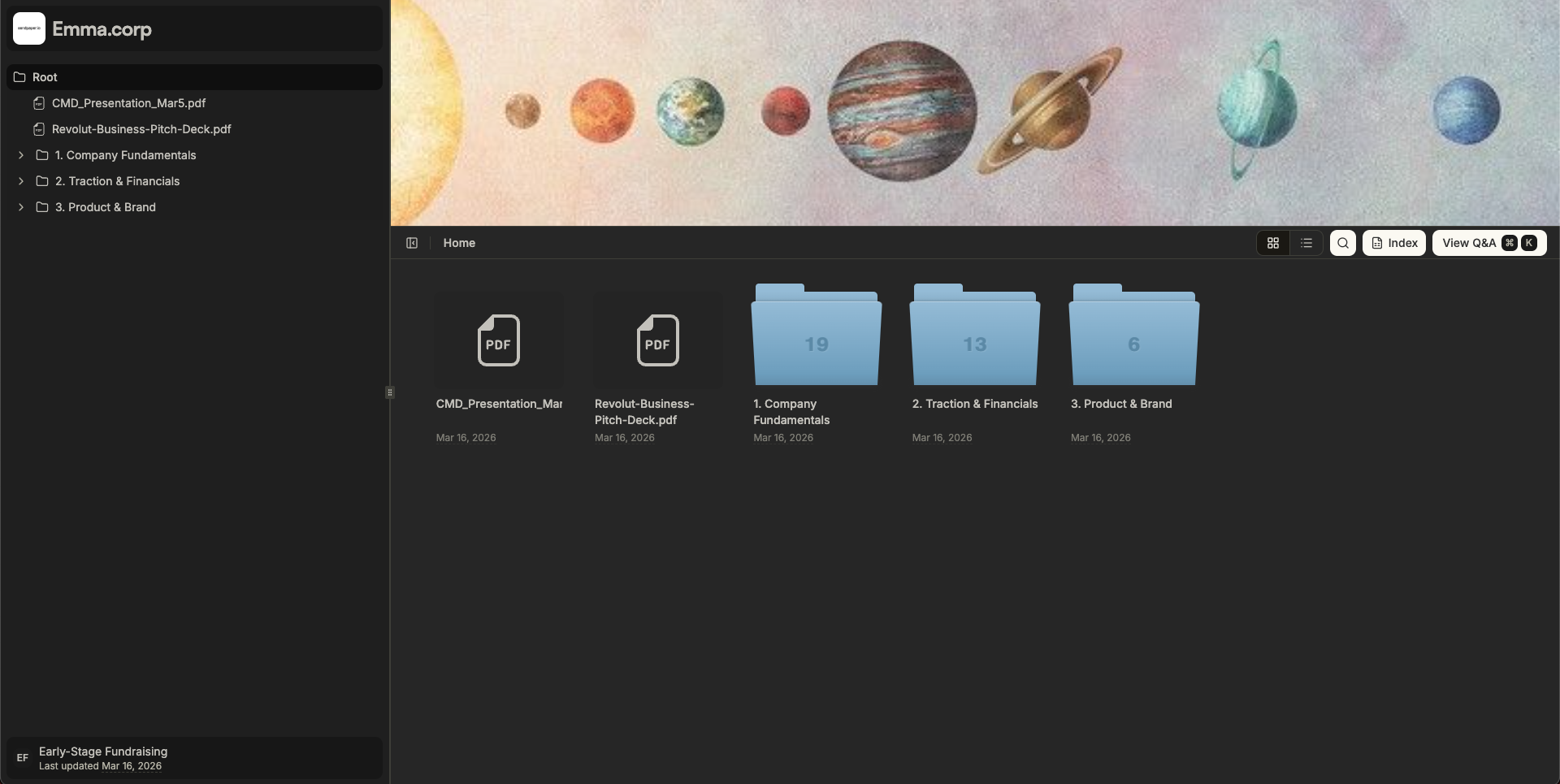
Ihr One-Link öffnet die gleiche Data Room Ansicht in der Grid-Ansicht.
Link Permissions: What Recipients Get With the One Link
When you share one data room link, you control exactly what recipients can do with it. Those controls are the link permissions for that link.
So when you share "one link" for multiple files, that link carries a clear set of permissions: who can open it, which content they see, and whether they can view only or also download. For the full set of options, see share link and access control and granular file and folder permissions.
Real-World Use Cases
Due Diligence and M&A
Buyers and advisors need one place to access all deal materials. Create a folder structure (e.g. Legal, Financials, HR, IP), bulk upload or add documents into those folders, then create a data room from that folder or add the folders to a new room. Share one link per party. Use granular permissions so each party sees only what they’re allowed to, and Q&A so questions and answers stay in one place. One link, many files, full control.
Fundraising and Investor Updates
Put your deck, financials, cap table, and other materials in a data room. Either build a folder in All Documents and create a data room from it, or create the room and upload/add everything there. Share one link with investors; they open it and browse by folder. Add link expiry or password so the link doesn’t live forever. You get document and room-level analytics so you know what was opened and when.
Board and Committee Packs
Bundle board packs, minutes, and supporting docs in a data room. Use folders (e.g. by meeting or by topic), then create a link for the room. Directors open one link and see everything. Restrict access with password or email allow list. Add more materials later by uploading or adding from All Documents; the same link still works.
Sales and Proposals
Keep proposals, one-pagers, and case studies in folders, then add them to a data room (or create the room from a folder). Share one link per prospect or deal. You can still use granular permissions so different links see different folders. One link per deal keeps things simple for the recipient while you keep control.
How It Fits With the Rest of Sendpaper
- Who can open the link - You decide who gets in. Use password, email allow list (only listed emails or domains), or email protection (viewer must enter email). You can also use a block list to exclude specific addresses. Link expiry stops the link from working after a date and time you set.
- What they see inside the room - With granular file and folder permissions, you choose which folders and files each link (or each group) can see. One link might see only "Financials" and "Legal"; another might see the full room. So one data room, multiple links, different access per link.
- View vs download - For the link you can allow view only (browse in the browser, no download) or allow download. Inside the room, granular permissions can further set view and download per folder and per file. So even if the link allows downloads, you can still block download on specific folders or files for that link or group.
- One link, one set of rules - Everything above is configured on the link (and, when you use it, on groups and folder/file overrides). Recipients get one URL; what they can do is whatever you allowed for that link. No extra logins unless you add password or email verification.
- Link settings - The same link access controls apply to data room links: password, link expiry, email allow/block list, email protection, and view notifications. One link can be as open or as locked down as you need.
- Granular permissions - Inside the room, use granular file and folder permissions to control who can view or download which folders and files. Multi-file sharing doesn’t mean everyone sees everything.
- Q&A - For due diligence or investor rooms, turn on data room Q&A. Viewers ask questions from the room; you answer and can publish answers as FAQs. All in one place, tied to the same link.
- Analytics and audit - See document analytics and the data room audit log so you know who viewed or downloaded what. Multi-file sharing stays trackable.
Data-Room-Demo-Video
Sehen Sie, wie Sendpaper aus Ordnern einen Data Room aufbaut, mehrere Dateien hinzufügt und danach einen einzigen Link mit Zugriffskontrolle und Tracking teilt.
Erstellen Sie einen Data Room, laden Sie Ordner und Dokumente hoch, setzen Sie Berechtigungen, und teilen Sie einen Link.
Frequently Asked Questions
Related posts
- Product, GuidesData-Room-Gruppen: Rechte und Analytics an einem Ort | SendpaperNutzen Sie Data-Room-Gruppen in Sendpaper, um Berechtigungen und Analytics für Investoren, Käufer und Teams zu steuern. Gruppe einmal anlegen, auf Links anwenden und Aktivität auf Gruppenebene sehen.
- Product, GuidesWie Sendpaper Dateien im Viewer als Bilder rendert (und warum das wichtig ist) | SendpaperSo wandelt Sendpaper hochgeladene PDFs in Seitenbilder um. Dieser Guide erklärt, welche Formate im Viewer sichtbar sind, was die Verarbeitung bedeutet und warum ein Loader erscheint.
- Product, SecuritySicheres PDF-Dokumententeilen: Wasserzeichen, Screenshot-Schutz, Nur-Ansicht | SendpaperPDFs sicher teilen mit Wasserzeichen, Screenshot-Schutz, Nur-Ansicht und One-Click-Agreement. Passwort und Zugriffskontrolle in Share-Link und Zugriffskontrolle. Eine Sidebar, alle Optionen.